Ever wondered if your screen is really as smooth as it looks? Frame rate tests show you every flicker and pause, making the mystery clear. In this post, we talk about some cool tools and easy ways to check your screen’s performance, ways that even top gamers trust. We break down each technique so you can see why every frame matters. Ready to change the way you experience games with just a few simple tweaks?
Essential Frame Rate Test Methodologies
Frame rate testing can be tackled in several cool ways. Tools like TestUFO let you quickly check how smooth your display is by showing off the stroboscopic effect of a finite frame-rate display. TestUFO 2.0 went public in beta on January 18, 2024, and introduced new features such as the "1000Hz Journey" and side-by-side G-SYNC vs V-SYNC comparisons. Imagine watching an animation that shows every microsecond of motion, it's like seeing pure clarity when the action speeds up.
Software tools also have a big role when it comes to gaming fps benchmarks and real-time fps tracking. These programs are built to capture in-game performance in detail. They not only give you average frame rates but also log frame times, which are key for spotting issues like motion blur and tearing. A lot of gamers dig how these tools mix ease of use with deep insights.
Hardware solutions add another layer to the mix by giving you a tangible way to measure performance. High-speed tests that capture up to 1000 fps come in super handy, think of watching a basketball dunk or the cool flow of Coke being poured. With metrics like a 960 pixels per second blur analysis on 4K 1000Hz monitors and HDR test protocols, these tests help catch even the smallest motion details.
Frame rate test: Stunning Fluid Visuals
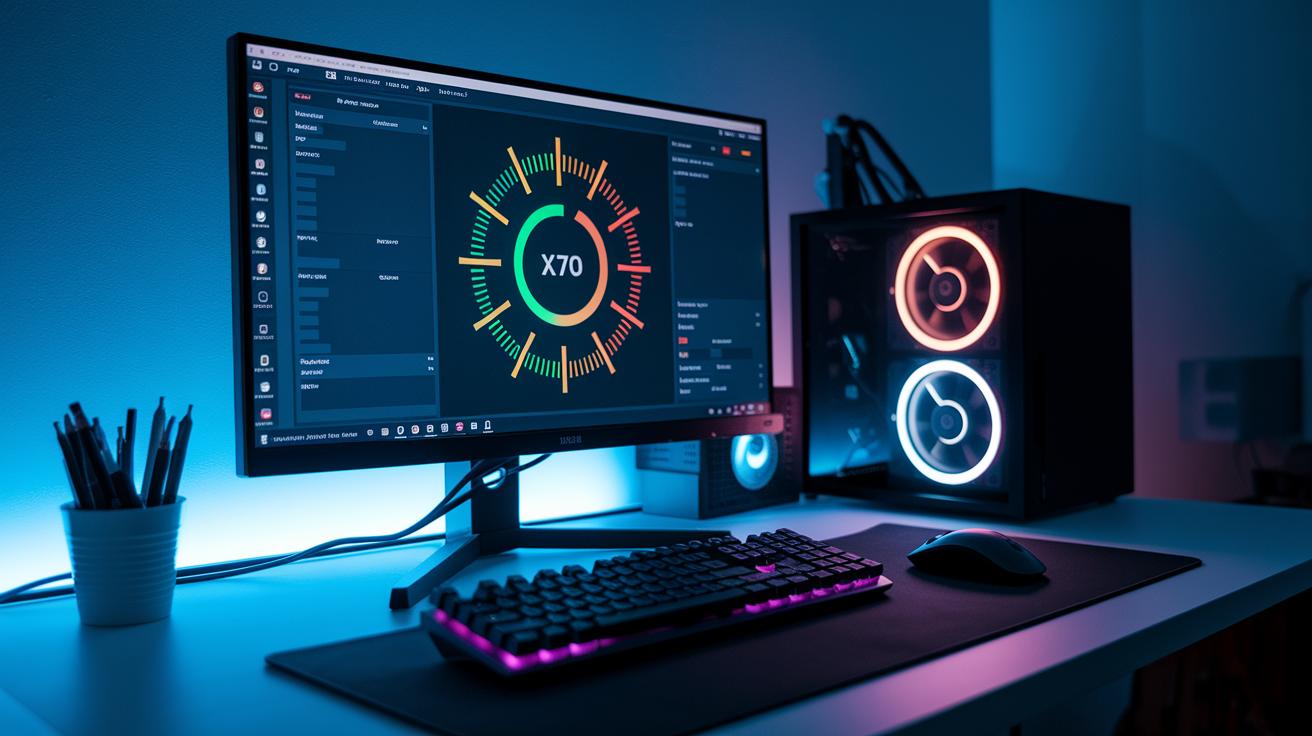
Kick things off by choosing the right tool to check your gaming screen's refresh rate. Tools like FRAPS or MSI Afterburner do a great job tracking your PC’s FPS. Many gamers, like DeerDK and DoctorNick, also suggest double-checking with simple console commands or even a high-speed camera. This careful choice is key to getting accurate results for your monitor.
Next, take a moment to fine-tune your settings. Make sure you set the right resolution and refresh rate because even a tiny error can cause stuttering or throw off your readings. Adjust your tool’s options and watch out for background apps that might mess with your FPS count. Testing before and after a Windows update can give you extra clues about how your display is performing.
Follow these steps to run your frame rate test:
- Install or open your chosen FPS tool
- Configure the resolution and refresh rate
- Run the test (try a game, video, or browser)
- Record the raw FPS data and frame timing
- Save or screenshot the results for review
Finally, take a look at your saved data and compare it with any on-screen overlays. Reviewing these trends from both in-game and browser tests helps you spot any areas that need tweaking, so your measurements truly reflect your monitor's performance.
Frame rate test: Stunning Fluid Visuals
When you want to see how smooth your game looks, picking the right tool is key. If you don’t want to install anything extra, a browser test like TestUFO gives you a fast look at things like strobe effects and blur. But if you’re on Windows and need more details, apps like FRAPS and MSI Afterburner let you dive into logs that help you adjust your settings just right. Lately, updates even remind you to check your graphics drivers and close background apps to get more accurate results. You might even say, "Using a dedicated test app is like choosing the perfect tool when it really counts."
Software tools usually provide a deeper look compared to online tests that use JavaScript, which can sometimes be hit or miss. FRAPS gives you a simple overlay to note frame timings, while MSI Afterburner shows your FPS in real-time along with GPU temperature and clock speed. Next, check out the table below to see how these tools match up in features and platform support:
| Tool | Platform | Key Features |
|---|---|---|
| TestUFO | Browser | Stroboscopic & blur tests, no install |
| FRAPS | Windows | Logs frame timings, lightweight overlay |
| MSI Afterburner | Windows | Real-time FPS, GPU temp, clock speed |
| Example Online FPS Checker | Browser | Web-based analysis, variable accuracy |
Frame rate test: Stunning Fluid Visuals
When you start checking your FPS logs, take a look at the average, minimum, and maximum numbers. These figures give you an idea of how steady your frame rate really is. Also, check the frame-times to see if there are any sudden dips or jumps. And if you try out G-SYNC versus V-SYNC tests, you'll notice small differences in input lag that can change how smooth things feel in the heat of the game. For instance, running a video card FPS check will show you whether your system consistently meets its target or if it struggles with uneven frame delivery. Think of these numbers as your first tip-off about how well things are working.
Next, switch your attention to the visuals. Look out for things like ghosting, stuttering, or tearing. Motion blur detection is super important here. Tools like TestUFO can measure stuff like pixel travel, often around 960 pixels per second, to help you judge how natural the motion looks. A solid real-time lag test, combined with a careful review of your data, can expose little details that typical FPS tests might miss.
Finally, pull together all your data to test both GPU performance and display lag. By comparing your frame stability against solid benchmarks, you can spot odd drops and other issues. Checking both the overall trends and the finer details helps you understand how reliable your FPS readings are. This way, you can make smart tweaks to keep your visuals smoother and your gameplay as fluid as possible.
Device-Specific Guidelines for Frame Rate Testing
When you're checking your FPS on a mobile, Android users have a couple of neat tricks up their sleeves. You might use apps like Android Display Tester or dive into ADB developer settings for live refresh data. On an iPhone, just flip on the FPS Counter in Developer Settings or run TestUFO in Safari to see how smooth your display is doing. It's like having a mini scoreboard right there on your screen to spot any glitches fast.
Laptops need a slightly different game plan. If you're on Windows, try out MSI Afterburner to keep an eye on your frame rates. Mac users, on the other hand, can use Intel Power Gadget whether you're on integrated or dedicated GPUs. Want to check out 120Hz or 144Hz panels? Use TestUFO with specific patterns that mark every refresh shine. And by switching between graphics modes, you can uncover hidden performance shifts that happen only in real play.
All these device-specific methods give you one solid way to gather your data. Whether you're eliminating performance dips with an Android app, peeking at your iPhone's FPS counter, or fine-tuning your laptop with specialized tools, each approach helps you capture those smooth visuals during intense gaming sessions. In the end, this step-by-step method really shows you what your gaming display is capable of.
Troubleshooting Common Frame Rate Test Issues
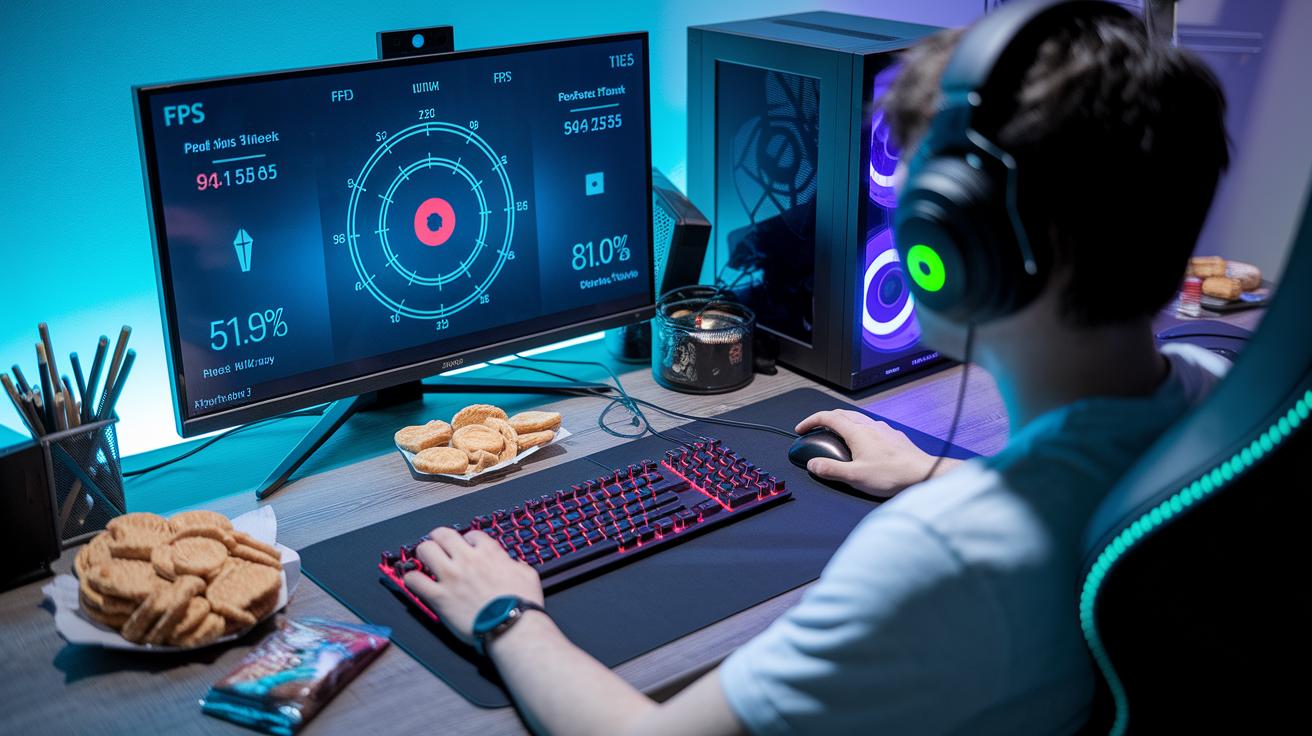
Ever notice your FPS tanking mid-game? It might be background programs or power-saving settings throwing things off. Try turning off any CPU-throttling features you have running; you might be surprised how much steadier your frame rates become.
Some gamers have seen that features like G-SYNC and FreeSync sometimes give you fake low readings. It helps to flip these settings on and off during your tests so you can figure out what’s really happening. And if you're using a browser tool, keep in mind that JavaScript limits can make it seem like your FPS is lower than it is. Running several tests and comparing the numbers usually clears things up.
Mixing a few quick fixes can also smooth out weird spikes or ghosting that mess with your data. Make sure no sneaky apps are running in the background and experiment with different test scenarios. These small tweaks can give you cleaner numbers to work with, so you can hunt down and fix any lingering display lag issues.
Final Words
in the action, we broke down frame rate test methodologies, from browser tests to dedicated software tools, while walking through step-by-step procedures and comparing testing options. We showed you how to read and act on the data to keep your visuals smooth.
We also tackled how to test on different devices and fix common issues. With a solid grasp of these FPS performance ideas and a hands-on frame rate test approach, you now have the tools to boost your gaming and streaming quality. Enjoy the smooth ride!
FAQ
What does the 120 fps test show?
The 120 fps test shows how smooth your display renders at high speeds by confirming if your screen can handle 120 frames per second—a key factor for fluid gaming visuals.
What is the UFO test for frame rate?
The UFO test indicates your display’s performance by using moving patterns to reveal motion blur and refresh consistency, giving a quick snapshot of how well your monitor handles fast motion.
How do I check my screen frame rate?
Checking your screen frame rate involves using online tools or dedicated software like TestUFO, which measures refresh rates and frame timings to confirm that your display meets performance needs.
How can I test my FPS on mobile devices?
Testing FPS on mobile devices is done using apps designed to measure frame rates in real time, ensuring that your phone or tablet delivers smooth visuals during gaming or video playback.
How can I perform a frame rate test on my laptop?
Performing a frame rate test on your laptop involves using online tools or software such as FRAPS, which capture real-time FPS to verify that your display maintains high performance during gameplay.
Is the UFO test accurate for frame rate testing?
The UFO test is accurate for basic frame rate evaluation as it reveals motion blur and refresh inconsistencies, though many users complement it with other tools for a more comprehensive analysis.