Ever wondered if your game visuals might be slowing you down? Think of your screen like a fast race car – the frame rate is the engine revving up, while the refresh rate is the tire grip that keeps every turn smooth.
When these two work together just right, your gameplay becomes super smooth and exciting. In this post, we break down what each term means and show you how getting them in balance can really boost your gaming experience. Stick around to learn how to upgrade your visuals and enjoy every moment in clear detail.
frame rate vs refresh rate: Elevate Visuals
Have you ever wondered what makes your game look so smooth? In simple terms, frame rate and refresh rate are the two key players behind your display's magic. Frame rate tells you how many still images your system, like your GPU or CPU, can create in one second. Think of it as the engine revving up behind your game. When you hit 60 fps, for example, you’re seeing 60 fresh images per second. This boosts the detail, making fast moves look real crisp.
Refresh rate, on the other hand, is all about how often your monitor updates the picture each second. Measured in hertz (Hz), a higher number like 144 Hz means your screen redraws the image 144 times every second, which makes everything feel smoother. This is especially important when things are moving quickly, ensuring your game remains fluid and clear.
The best visuals happen when both these numbers work together. If your GPU is churning out tons of frames but your monitor refreshes slowly, some images might not even show up, leading to screen tearing or stuttering. And if your monitor's top-notch but your fps is low, the game might look choppy. Real examples, like a Rental LED Display hitting 3840 Hz or a Live Concert Screen at 7680 Hz, show how matching these rates is key for a seamless experience.
| Metric | Unit | Function |
|---|---|---|
| Frame Rate | fps | Counts the number of images rendered per second by your hardware. |
| Refresh Rate | Hz | Shows how many times the monitor updates its display per second. |
How Frame Rate Is Measured and Optimized
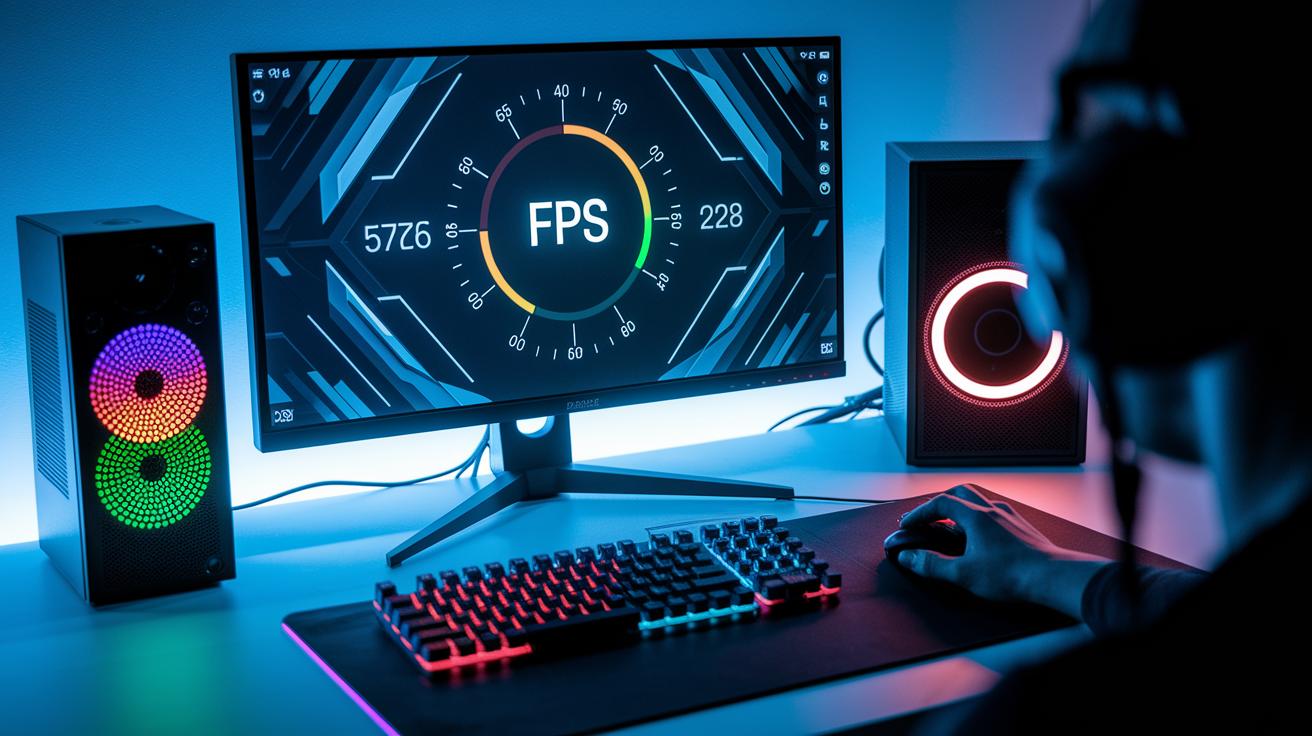
Measuring your frame rate starts with tools built right into your GPU or its driver. These built-in counters give you a quick look at how smooth your game runs, although their accuracy can differ depending on calibration and your monitor’s refresh rate.
- Built-in GPU counters – Super easy to use but might not give all the details.
- In-game overlays – Handy for checking on the fly, though they might slow things down a bit.
- FRAPS – Known for solid accuracy, but it offers fewer features.
- MSI Afterburner – Shows detailed visuals and lets you customize settings, even if it might feel overwhelming at first.
- External utilities – They deliver very precise numbers, but setting them up can be a bit tricky if you’re new to it.
Choosing the right tool is all about balancing ease of use with accuracy. You might start with an in-game overlay for everyday play and then try FRAPS or MSI Afterburner when you need to dig deeper.
It’s important to calibrate these tools correctly. If your GPU produces more frames than your monitor can display, you’re not seeing the full picture. Experiment with different methods and adjust the settings so that the FPS you see is a true reflection of your hardware’s performance.
Understanding Refresh Rate in Modern Monitors
Refresh rate, measured in hertz (Hz), tells you just how many times your screen updates every second. Imagine it like a camera snapping quick photos so you never miss a move. A higher number here makes fast action scenes feel smooth and sharp, giving you that real competitive kick in the game.
Most monitors run anywhere from 60 Hz to 240 Hz. For everyday use and streaming movies, 60 Hz does the job pretty well. But if you’re a gamer looking for that extra edge, opting for 120 Hz or 144 Hz can really help keep up with those lightning-fast moves. And it’s not just the number that matters, the panel type plays a part too. TN panels tend to be quicker, while IPS and VA types focus on rich colors and deeper contrast, each with their own cool traits.
Modern screens even come with smart tech like G-Sync and FreeSync. These features sync your monitor’s refresh rate directly with your graphics card, so you get fewer screen tears (that split-image moment you hate) and a steadier, smoother visual experience. It’s like having a teammate who’s always got your back in those high-stakes gaming sessions.
Frame Rate and Refresh Rate in Gaming Performance

Faster frame rates (fps) and monitor refresh rates (Hz) can seriously up your game. Competitive players have shown that swapping a 144 Hz monitor for a 240 Hz one can trim about 10ms off your reaction time. Imagine that, a pro even mentioned they shaved nearly 10ms from their reaction speed after the switch.
Keeping your system’s fps in sync with your monitor's Hz is key to avoiding hiccups. Studies comparing middle-range and high-end monitors found that when things don’t match up, you might miss vital details, like an enemy sneaking around during heated moments. One review pointed out that mismatched gear caused players to overlook key enemy movements when the pressure was on.
In real matches, having the right hardware setup really counts. Tournament breakdowns reveal that synced fps and Hz deliver clearer visuals and nail-precise targeting in intense situations. One top pro shared, "Switching to a fully synchronized rig made every enemy move sharper, a real game changer on the final round."
Common Frame Sync Issues: Tearing, Stuttering, Lag
Screen tearing happens when your GPU and monitor aren’t in sync. Basically, your graphics card might send frames faster or slower than your screen refreshes, causing bits of different frames to show together. Ever been in a fast-paced shooter and noticed your character looking chopped up during rapid movement? Yeah, that’s what we call tearing.
Stuttering shows up when frames aren’t delivered evenly. It’s like watching a slideshow that suddenly speeds up and slows down, you lose track of the action. This uneven frame delivery makes even the most critical moments feel longer and a bit frustrating.
To fix tearing, try turning on V-Sync, which forces your GPU and monitor to sync properly. You can also get adaptive sync tools like G-Sync or FreeSync that adjust on the fly when your frame rate changes. Even a simple switch to V-Sync can stop those pesky split images during intense scenes, as long as your hardware can handle it.
Frame pacing smooths things out by making sure frames show up at a steady, reliable pace. This decrease in input lag means your actions hit the screen right when you expect them to, keeping gameplay fluid and super responsive. Nail this setup, and your game feels like it’s in perfect sync with your moves, making every match that much more satisfying.
Optimizing Frame Rate and Refresh Rate for Smooth Gameplay

Your gaming performance gets a boost when you tune up your system’s GPU and in-game settings. Start by updating your drivers and fine-tuning your GPU settings to get the smoothest fps. Try lowering resolution scaling and turning off some heavy effects so your hardware works smarter, not harder. Imagine tweaking a few options and then watching your fps jump, kind of like switching to a high-performance engine in a race. Overclocking your GPU and closing background apps can also help keep your frame rate steady. Even small changes, like dialing back graphics in less important scenes, can make your gameplay more consistent and match your fast moves.
Next, picking the right monitor can really level up your visuals. Look for a monitor that runs at 144 Hz or higher, with super-low response times and reliable overdrive to keep up with high fps output. Calibrating overdrive and setting the right color profiles ensures what you see is both true-to-life and vibrant. With cool trends like mini-LED and OLED panels, you get extra-fast refresh rates with variable sync options for smoother visuals on modern consoles. By tuning your GPU and wisely choosing your monitor, you can dive into games that look sharp and steady, keeping pace with every quick move you make.
Final Words
In the action, we explored how frame rate vs refresh rate work together to drive display performance for gaming. We covered how fps is measured, why monitor refresh matters, and what happens when things fall out of sync. We even looked at tips for keeping both in check to avoid tearing, stuttering, and lag. This guide lets you tackle display performance issues with confidence and keep gameplay smooth. Stay sharp and enjoy every moment of your gaming sessions!
FAQ
How do frame rate and refresh rate compare on Reddit, in gaming, and on laptops?
The discussion shows that frame rate (fps) is the number of game frames produced per second, while refresh rate (Hz) is how often a display updates. They work together but are not the same.
How many Hz does 60 FPS equate to?
The explanation reveals that 60 FPS nearly matches a 60 Hz refresh rate when the monitor properly synchronizes with the GPU output.
What is a refresh rate test?
A refresh rate test checks how many times a monitor updates its image each second, ensuring smooth, responsive visuals during fast-paced action.
What happens if your refresh rate is higher than your FPS?
The answer shows that when a monitor’s refresh rate exceeds FPS, the system repeats frames. This can lead to slight stuttering without boosting overall image quality.
How does 120 FPS translate to Hz?
The description explains that achieving 120 FPS means a monitor with a 120 Hz refresh rate will match the output, displaying each frame in real time if supported by your hardware.
Is a high monitor refresh rate important for gaming?
The explanation states that higher refresh rates provide smoother visuals and faster response times, enhancing gameplay by reducing motion blur and input lag during competitive matches.
Are refresh rate and frame rate the same?
The explanation clarifies that frame rate measures how many images the GPU renders per second, while refresh rate is the number of times your monitor updates its image. They are related but distinct metrics.