Ever been in the middle of a live stream when lag turns your win into a letdown? When you're streaming, every millisecond counts. In this guide, I'll walk you through some simple tweaks that help your game and stream stay in sync. Think of it like upgrading your gear before an epic boss fight, small changes can really boost your performance.
By fine-tuning your hardware, software, and network settings, you'll experience fewer glitches and more smooth wins. Ready to level up your streaming game? Let's dive in and start enjoying a steadier, more exciting gaming session.
Core Strategies to Optimize Game Streaming Performance
When you're gaming and streaming at the same time, you need to handle both the game and the stream smoothly. It can feel overwhelming, even for seasoned gamers. Frame drops and lag can sneak in if your setup isn’t just right, so knowing what to upgrade or tweak really makes a difference.
Every part of your system matters when you're live. Boosting your hardware and tweaking settings can cut down on lag and give you a smoother stream. Fix network issues, lower your video resolution if needed, and close extra programs to help your viewers enjoy a clear, stable stream.
- Hardware Upgrade: Level up with a strong CPU and GPU. At a minimum, use an Intel Core i5-4670 with 8GB RAM to help improve encoding. It’s like swapping an old graphics card for a new one, you’ll see the difference in those intense battles.
- Software Tweaks: Turn on Windows Game Mode and disable non-essential notifications. This frees up resources so both your game and stream run without hiccups.
- Network Setup: Switch to an Ethernet cable instead of relying on Wi-Fi. A wired connection cuts down on lag, keeping your gameplay and stream perfectly in sync.
- Resolution Adjustment: Lower your streaming resolution from 1080p to 720p. This lightens the load on your system while still delivering quality visuals.
- Resource Management: Close any apps and background processes you don’t need. This simple step lets your system focus solely on your game and stream.
Try out these steps to upgrade your setup and fine-tune your stream. Experiment with each change, watch your system’s performance, and adjust things to match your gaming style. Soon, you’ll notice everything running a lot smoother.
Hardware Optimization for High-Quality Game Streams
When it comes to streaming your gameplay without hiccups, having top-notch hardware is a must. A solid setup keeps your game running smoothly while your stream amazes your viewers. Upgrading to a quad-core processor like the Intel Core i5-4670 and packing in at least 8 GB of RAM gives you the power to encode live video without a hitch. And if you push your system hard by overclocking, be sure to invest in aftermarket coolers for your CPU and GPU so things stay chill. Offloading encoding work to the GPU with tools like NVENC or Quick Sync helps take the pressure off the CPU. Plus, using a dedicated capture card can cut down input lag during those intense, critical game moments.
- CPU: Use a quad-core processor such as the Intel Core i5-4670 or better to ensure smooth encoding.
- GPU: Look for GPU acceleration features like NVENC or Quick Sync to help with encoding tasks.
- RAM: Have at least 8 GB so the system can easily juggle your game and stream software.
- Cooling: Get quality aftermarket CPU/GPU coolers to keep temps low and prevent thermal slowdowns.
- Capture Card: A dedicated card (like the Elgato HD60) is key for minimal input lag and dependable capture.
- Power Supply: Choose a robust power unit that can handle upgraded parts during heavy use.
Capture Card Configuration
Start by installing the latest drivers from your capture card's maker. Set up the passthrough so you can play without any extra delay on your monitor. It’s a good idea to run a few latency tests to make sure input lag is kept to a minimum and that your stream reflects exactly what’s happening in your game.
Test different driver settings and double-check that your card’s firmware is current. Keep an eye on the live video feed while gaming to catch any timing issues between the game and your stream. Getting these settings just right can make all the difference, because even a tiny lag can throw off your viewers' experience.
Before you jump into your next stream, take a moment to go over your hardware checklist. Confirm that your CPU, GPU, RAM, cooling, capture card, and power supply are all up to par. This way, you'll be prepped for a consistent, high-quality streaming session every time.
Software and Encoding Settings for Smooth Streaming
When you’re setting up your stream, picking the right encoder makes all the difference. If you’re using OBS, go with NVENC instead of x264 when your GPU can handle it. This helps keep your CPU from getting bogged down. Set the keyframe interval to 2 seconds and switch to CBR mode so your video stays steady.
Next, plan your bitrate. For a 720p stream, aim for 3000 to 4500 Kbps. If you’re streaming in 1080p, push it to 4500 to 6000 Kbps. This method keeps your stream looking sharp without overworking your system. And if things get hectic, lowering the resolution or FPS a bit can really smooth out the load.
It also helps to use adaptive bitrate plugins. They adjust the quality on the fly based on your available bandwidth, giving your viewers fewer hiccups. If you like handling every detail, OBS lets you fine-tune settings to match your system and streaming goals.
- Open OBS and switch the encoder to NVENC if it’s available.
- Set the keyframe interval to 2 seconds and choose CBR mode.
- Enter your bitrate: 3000–4500 Kbps for 720p or 4500–6000 Kbps for 1080p.
- Turn on adaptive bitrate plugins for live quality adjustments.
- Consider lowering your output resolution or FPS during intense gaming sessions for smoother performance.
After plugging in these changes, run a few test streams to check your performance. Tweak the settings until you find the perfect balance between quality and system load.
Network Tuning to Reduce Latency and Packet Loss

When you're live streaming games, a rock-solid network connection is a game changer. A wired cable setup cuts down on sudden drops that can break your flow during intense matches. Tuning your network means you keep lag low so your viewers catch every move almost instantly.
Quick internet speeds help squash lag too. When you manage your bandwidth and tell your router to focus on your stream, your upload speed stays steady. This kind of setup keeps your broadcast clear and stops jitter from messing up your gameplay visuals.
- Switch to a wired Ethernet connection to dodge Wi-Fi interference.
- Set your router to give priority to your stream.
- Check your internet speed often to ensure steady upload rates.
- Avoid streaming during busy hours when online traffic spikes.
- Use easy-to-run tools to find and fix packet loss issues.
- Keep an eye on jitter using apps like PingPlotter, aiming for under 30 ms.
| Resolution | Min Upload (Mbps) | Recommended Bitrate (Kbps) |
|---|---|---|
| 720p | 5 | 3000 – 4500 |
| 1080p | 8 | 4500 – 6000 |
| 1440p | 10 | 6000 – 8000 |
Keep a constant eye on your network. Run speed tests and use simple diagnostic tools to spot issues early. Tweak your router settings and try to stream during quieter hours so your broadcast stays smooth and low on lag, matching your gameplay every step of the way.
Troubleshooting Common Stream Performance Issues
When your stream starts glitching, a simple check might reveal what's wrong. Let's break down what could be happening and how to fix it.
-
Dropped Frames: If you spot a sudden spike in dropped frames using OBS Stats, it's a sign to adjust your settings. For instance, try lowering the resolution or tweaking the bitrate when these numbers jump quickly.
-
High CPU Load: Open up GPU-Z or Task Manager and take a peek at your CPU and GPU usage. If you see spikes during gameplay, closing a few background apps could ease the load and keep your stream steady.
-
Overheating: Give your system a quick feel, if it's running too hot or you notice dust in the cooling fans, it's time for a clean-up or to boost your cooling. A little fan cleaning might go a long way in keeping things cool.
-
Buffering: When buffering interferes with your stream, a small tweak might help. Try adjusting the keyframe interval or reducing the bitrate a bit. For example, a 2-second keyframe interval can work wonders to smooth things out.
-
Encoder Errors: Keep an eye on OBS for any encoder error messages. If they pop up, take another look at your encoding settings and consider switching between NVENC and x264 to see which one works better for you.
Monitoring and Benchmarking for Continuous Improvement
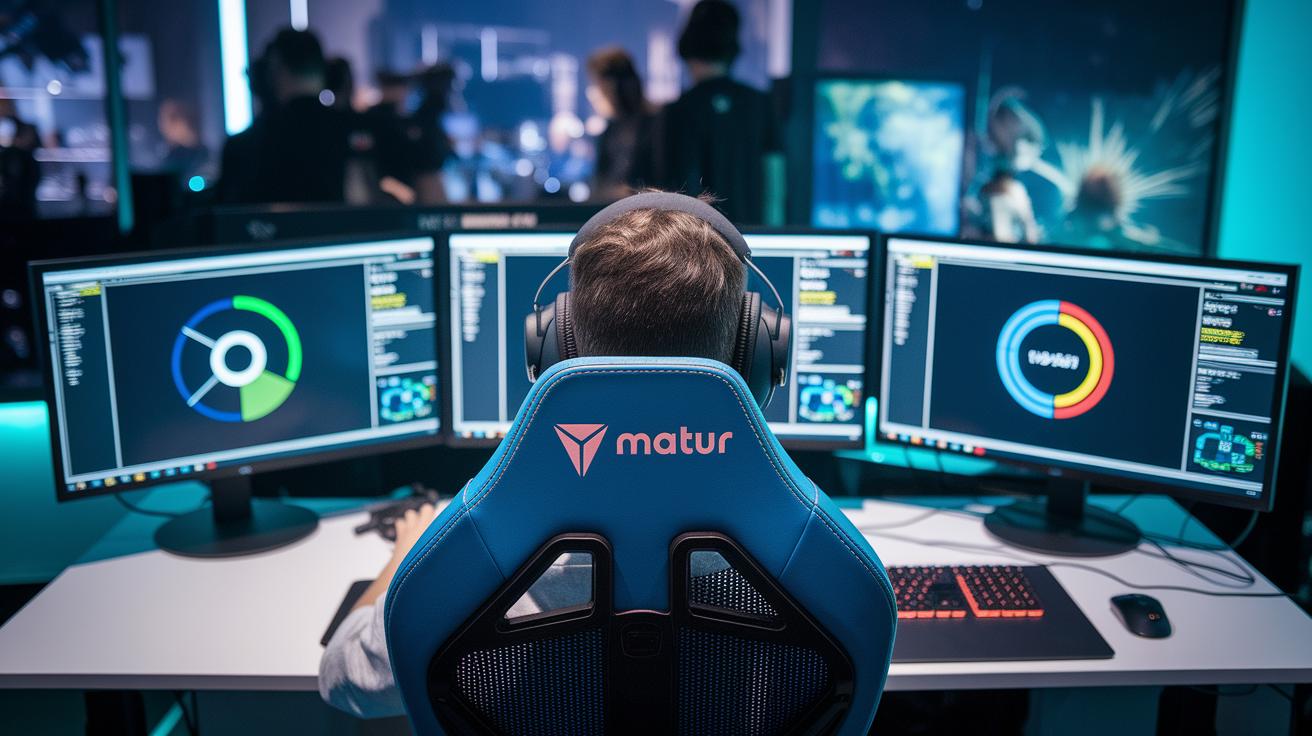
Keeping an eye on your stream’s performance is key to a smooth broadcast. Real-time stats help you see exactly which parts need work and give you the confidence that every tweak is making a difference. With the right tools, you can quickly catch issues like lag or dropped frames, so your stream stays solid, even in those heart-pounding moments.
Regularly checking your metrics is a smart move for tracking improvements over time. When you measure things like stream health and latency, it’s easy to spot which changes actually boost your quality. This hands-on method is like having your own in-game replay, showing you that every optimization adds up.
| Tool | What It Does |
|---|---|
| Twitch Inspector | Checks dropped-frame logs and shows where interruptions happen |
| OBS Stats | Watches bitrate stability and keeps an eye on encoding consistency |
| PingPlotter | Tracks your network latency to catch any delays |
| GPU-Z | Monitors GPU usage and temperature to avoid overheating |
Compare your stats before and after any changes you make. When OBS Stats shows a steady bitrate and PingPlotter reports consistent latency, you know your stream improvements are really paying off.
Advanced Techniques: Adaptive Bitrate and Hardware Offloading
Want your stream to keep its cool even when the game heats up? These pro tricks tweak your settings in real time so your broadcast adjusts to sudden shifts in gameplay and network speed.
-
Adaptive Bitrate Adjustment: Set your streaming software to automatically adjust video quality based on your network speed. This trick keeps your stream steady when your connection is up and down. For example, you can have it lower the bitrate during heavy traffic so your viewers see fewer dropouts.
-
Dynamic Resolution Scaling: Enable dynamic resolution scaling in OBS so that if your FPS dips, the stream resolution drops a bit too. This helps ease the pressure on your CPU and GPU, keeping your game visuals smooth even during intense moments.
-
Hardware Offloading: Use hardware acceleration like NVENC or Quick Sync to shift encoding from your CPU to your GPU. This lightens the load on your system, letting you game and stream without a hiccup. Just adjust the encoder settings to match your hardware's strengths.
-
Edge Computing Implementation: Bring your content closer to your viewers with edge computing. Setting up local edge servers helps cut down on delay by processing data nearer to your audience, making your stream feel more responsive.
When network conditions and game action change quickly, these tricks can really be a game changer. Use adaptive bitrate and dynamic resolution scaling during busy moments, lean on hardware offloading when your system is taxed, and trust edge computing when low latency is a must. Together, they keep your stream balanced, engaging, and ready for any challenge.
Final Words
In the action of setting everything up, you saw how hardware tweaks, software settings, and network tuning work to boost stream performance. The guide broke down practical fixes like CPU/GPU upgrades, OBS adjustments, and wired connections to cut lag. These tips show you how to optimize game streaming performance and improve overall quality. Testing and refining your setup is key. Enjoy seeing your stream run smoother and sharper, and keep pushing your skills to new heights.
FAQ
How to optimize game streaming performance on Reddit and Xbox?
Optimizing game streaming performance on Reddit or Xbox requires upgrading hardware for better processing, adjusting your game and streaming settings, and ensuring a strong wired network connection for reduced lag.
How to optimize Moonlight settings for streaming at 1080p?
Optimizing Moonlight for streaming at 1080p means adjusting resolution and bitrate to maintain quality while reducing load. Tweak encoder options and network settings to keep your stream smooth and responsive.
How does Sunshine game streaming and its download work?
Sunshine game streaming works by delivering your gameplay through optimized settings. Installing Sunshine lets you benefit from improved stream quality and low latency using its performance-focused configuration tools.
How to make games run better when streaming and optimize your PC’s performance?
Optimizing game performance while streaming involves lowering resolution demands, shutting down unnecessary programs, activating game mode, and fine-tuning both game and encoder settings to reduce frame drops and maintain quality.