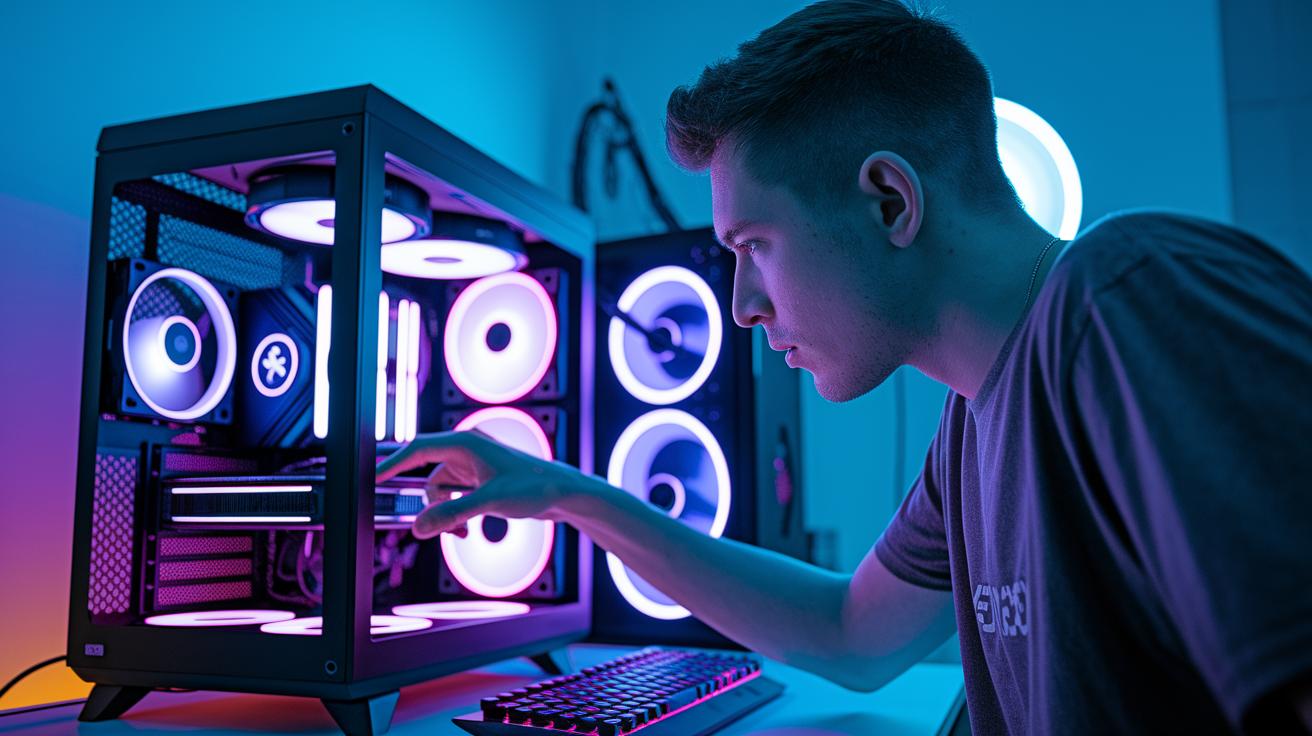
Ever felt like your computer is slowing down your game? It can be frustrating, like fighting with one hand tied behind your back. But imagine if a few smart tweaks could make your setup run faster and smoother. In this guide, you'll learn how to update your drivers, turn off apps that start automatically, and tweak your power settings so you can get that extra boost. Get ready to fire up your rig and play at your best every time.
Essential Techniques to Optimize Your PC for Gaming Performance
When your gaming rig isn't running at full tilt, it feels like you’re playing with one hand tied behind your back. The secret is to tune up every part of your PC so everything keeps up with your quick moves. Start by refreshing your drivers and cleaning up any background tasks you don’t need. This smart tweak not only smooths out your frame rate but also cuts down on that annoying delay when you press a key.
Next, update your graphics drivers with tools like GeForce Experience or AMD’s Adrenalin. One gamer I know said, "After updating, my visuals popped, and gameplay felt consistently smooth." It really makes a difference when your PC understands what your hardware can do.
Also, clear out apps that launch at startup. Trust me, disabling these extra apps is like trimming unnecessary weight off your character, it speeds up your boot and gives your system more room to breathe. And don’t forget to hit the Windows Game Mode. It tells your PC, "Hey, game time!" so it knows to focus its power on your match.
Another cool trick is to reduce some of those flashy visuals like extra animations. It’s not about making your game look bland; it’s about making every move feel quicker and more responsive. And lastly, adjust your power settings to go full throttle. When you set your PC to performance mode, it’s like giving it an energy boost for those long gaming sessions.
-
Update your graphic drivers using tools like GeForce Experience or AMD’s Adrenalin
"I switched to GeForce Experience and the game ran clearer and faster, especially during tough rounds." -
Disable non-essential startup applications
"Cleaning out extra apps cut my boot time down, just like nailing a perfect headshot." -
Turn on Windows Game Mode to cut background noise
"Activating Game Mode meant my game always got top priority, and I could really feel the boost." -
Scale back on visual extras by reducing animations
"Turning off extra animations made game transitions snappier, just like a quick reload." -
Set power settings to performance mode
"Switching to performance mode felt like giving my system a burst of energy during those intense sessions."
Each of these steps tackles common issues like slow drivers or overload from background tasks. When you combine them, your system becomes a lean, mean gaming machine that keeps pace with all your epic moments.
Windows OS and System Utility Tweaks to Optimize Gaming Performance
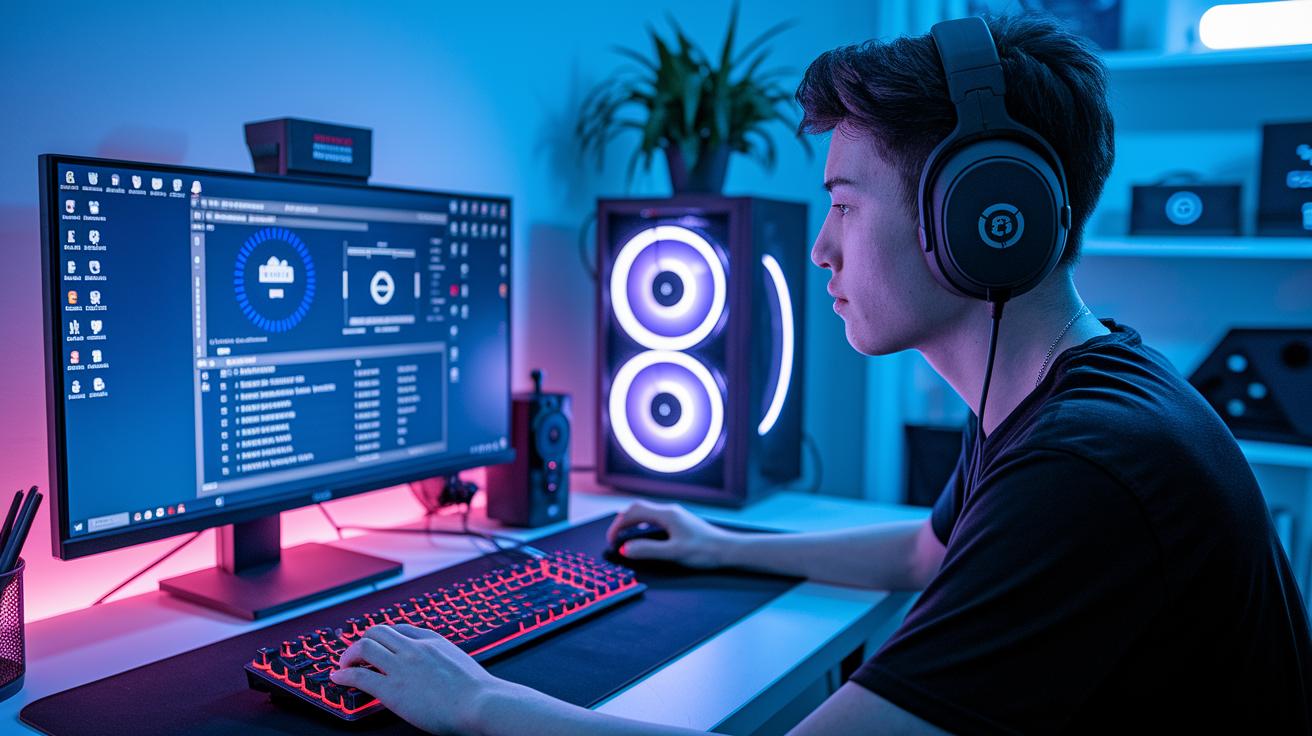
Getting your Windows ready for gaming is all about cutting out the clutter. When you tune up your OS, you let your system focus on gameplay rather than background distractions. It’s like clearing your desk before a big match so you can give it your all.
Here are some quick tweaks to level up your setup:
- Check for system updates – A simple update can fix bugs and sharpen performance. I remember booting up right before a crucial match and feeling that sudden boost in responsiveness.
- Disable non-essential startup apps – Open Task Manager and halt those extra programs that run at startup. Imagine starting your session without any unwanted noise slowing you down.
- Adjust visual effects – Turn off extra animations in the System Properties to free up valuable resources. It’s a bit like ditching extra weight before a speed run.
- Configure power settings – Switch to performance mode in Windows settings. This change is like grabbing a power-up right when you need that extra edge during an intense fight.
Using these built-in Windows tools can really help fine-tune your system with minimal fuss. Next time you gear up for a game, you’ll feel confident knowing your PC is streamlined and ready to deliver smooth, lag-free action.
Hardware Upgrades & Overclocking: Optimize Your PC for Gaming Power
Upgrading your PC’s hardware is like giving your gaming setup a power boost. Swapping in a better GPU, adding more RAM, and installing faster storage lets you play smoother and enjoy sharper visuals. Overclocking your CPU or GPU, when you’ve got good cooling in place, pushes performance even higher without causing overheating. It's like having your favorite game run on turbo mode, making every match feel more responsive.
Every upgrade plays its part. Check out the table below for a quick guide on what to aim for:
| Component | Specs to Aim For | Why It Helps |
|---|---|---|
| GPU | Latest generation with 8GB+ VRAM | Smoother graphics and quicker rendering |
| RAM & Storage | At least 16GB RAM, 32GB preferred and an SSD | Fast data access and better multitasking |
| Cooling & Overclocking | Keep GPU below 85°C, CPU under 80°C | Prevents overheating while boosting performance |
Pairing these upgrades with careful overclocking really cranks up your system’s power. When your GPU and CPU run faster and stay cool, every game feels more alive and responsive. Tuning your components so they perform at their best is like leveling up your rig, turning your PC into a smoother, faster, and more reliable teammate on the battlefield.
In-Game Settings & Display Configurations to Optimize PC for Gaming
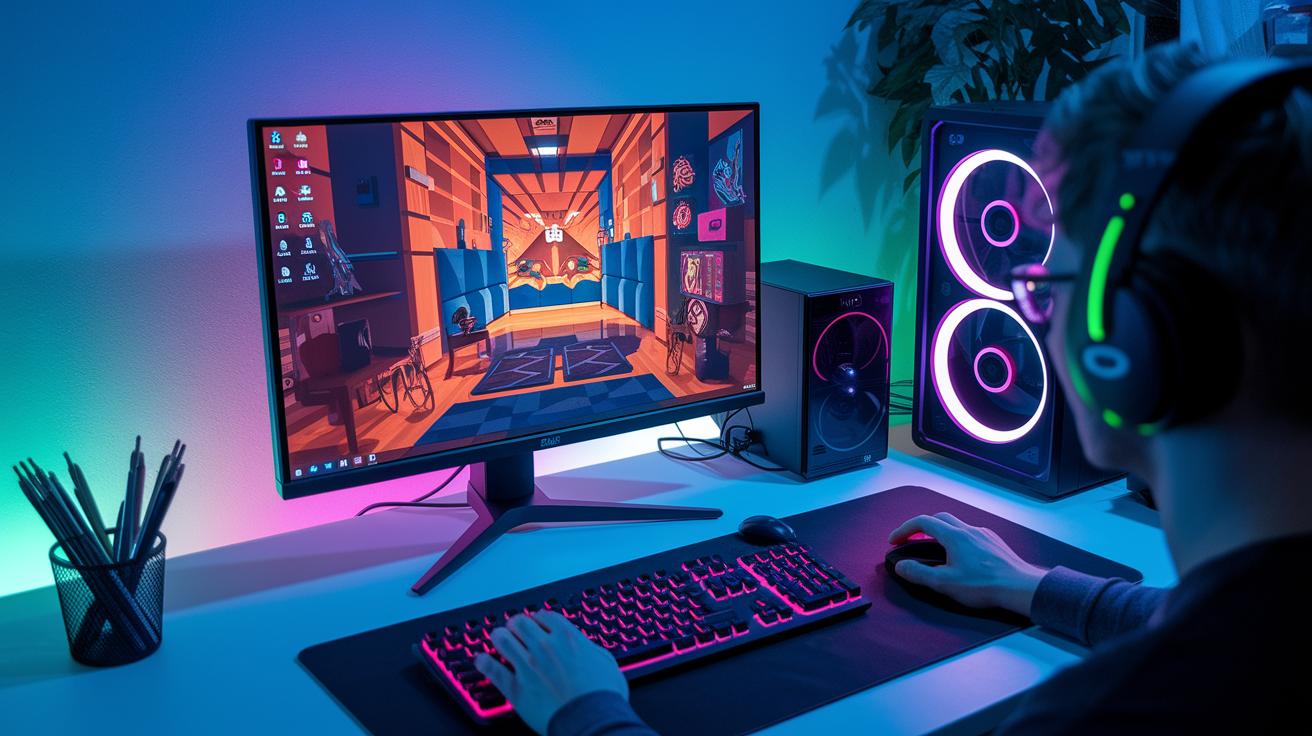
Fine-tuning your in-game settings is a lot like planning your battle strategy before a big match. It’s about striking that perfect balance between the crisp visuals you love and the speedy performance your game demands. When everything is dialed in, every move feels sharp and smooth, and those epic plays hit without a hitch. Adjusting options like anti-aliasing, shadow quality, and resolution is like picking the perfect loadout, it helps keep your PC from getting overworked and keeps your gameplay running buttery smooth.
Hop into your game’s settings and try these key tweaks:
- Adjust graphics details – Find that sweet spot where the visuals shine but your FPS stays high.
- Optimize shadow quality – Lowering shadows can free up processing power, making your game smoother.
- Tweak resolution settings – Balance clarity with speed so your visuals stay sharp without slowing you down.
- Configure V-Sync and refresh rate – Set your monitor to a refresh rate that matches your system’s output to cut down on screen tearing and ensure every frame counts.
Network & Streaming Settings: Enhance Connectivity for Optimized Gaming
A solid network connection is a game changer when you're online. Using a wired setup with good quality Ethernet cables like Cat-6 or Cat-8 can really help cut down your ping and keep lag at bay. Wi-Fi might sound convenient, but it often messes with your game due to unexpected interference.
Here's a simple guide to tune up your network and streaming setup:
- Check and upgrade your network gear – Make sure you're using fast, reliable cables and routers that help keep your ping low.
- Adjust your network adapter settings – Tweak things to lower delay, like turning off unused protocols or fine-tuning your drivers.
- Optimize your streaming software – Pick the right bitrate and resolution so your stream runs smoothly without overloading your network.
Tuning these settings can feel as rewarding as pulling off that perfect headshot. With updated hardware and dialed-in adapter and streaming settings, you'll notice fewer interruptions, less lag, and a more consistent gaming experience every time you log on.
Final Words
In the action, you explored key strategies to elevate your gaming setup. You got a solid rundown on updating drivers, cleaning up background tasks, and even optimizing in-game settings. We guided you through smart tweaks for Windows, hardware boosts, and network improvements for a smoother experience.
Keep these steps in mind as you work on how to optimize pc for gaming and enjoy a responsive, competitive play. Game on and have fun!
FAQ
How do I optimize my PC for gaming on Windows 10 and 11?
Optimizing your PC on Windows 10 and 11 means updating drivers, enabling Game Mode, and reducing background apps so that your system runs games smoother and achieves better FPS during play.
How is PC optimization for gaming discussed on Reddit?
Reddit users suggest practical tweaks like adjusting startup apps and clean installs while swapping ideas about performance settings that boost speed and reduce lag during intense gaming sessions.
How do I optimize my laptop for gaming?
Optimizing your laptop for gaming involves updating drivers, tweaking power settings, and closing unnecessary apps to prevent slowdowns, ensuring smooth gameplay even on mobile hardware.
How can I optimize my PC for both gaming and streaming?
Optimizing a PC for gaming and streaming balances resource use by fine-tuning graphics settings, managing background tasks, and setting proper bitrates, resulting in a stable experience for both play and broadcast.
How do I optimize my PC for Fortnite?
Optimizing your PC for Fortnite means updating drivers, lowering in-game graphics settings, and closing extra processes to maintain high frame rates, which helps keep gameplay smooth and responsive.
How do I optimize my PC with NVIDIA graphics?
Optimizing a PC with NVIDIA graphics involves running GeForce Experience for updates, adjusting control panel settings, and carefully overclocking when appropriate to ensure games run at peak performance.
What does a PC optimization service offer for gaming?
A PC optimization service offers expert tweaks, driver updates, and system clean-ups that streamline performance, reduce lag, and make your gaming experience smoother without lengthy manual adjustments.
How can I add upgrades to my gaming PC for faster performance?
Adding hardware upgrades like more RAM, a faster SSD, or a stronger GPU improves load times and frame rates, giving your gaming PC the extra speed it needs for competitive and responsive play.
What is the best FPS setting for PC gaming?
The best FPS setting depends on your hardware, but many gamers aim for 60+ FPS, which usually delivers a smooth visual experience while maintaining responsiveness during high-action gameplay.