
Ever notice how your TV sometimes seems to lag behind your every move? It can really kill your game vibe, and you’re not the only one dealing with it.
A few simple tweaks can really help. Try switching to a different HDMI port, turning off extra picture settings, or lowering your resolution. These quick fixes can make your screen react faster, just like you want it to.
In this guide, we’ll break down easy steps to boost your gameplay and cut down that annoying delay. Ready to level up your play and enjoy smoother gaming every time you hit start?
Quick Troubleshooting Steps for TV Input Lag
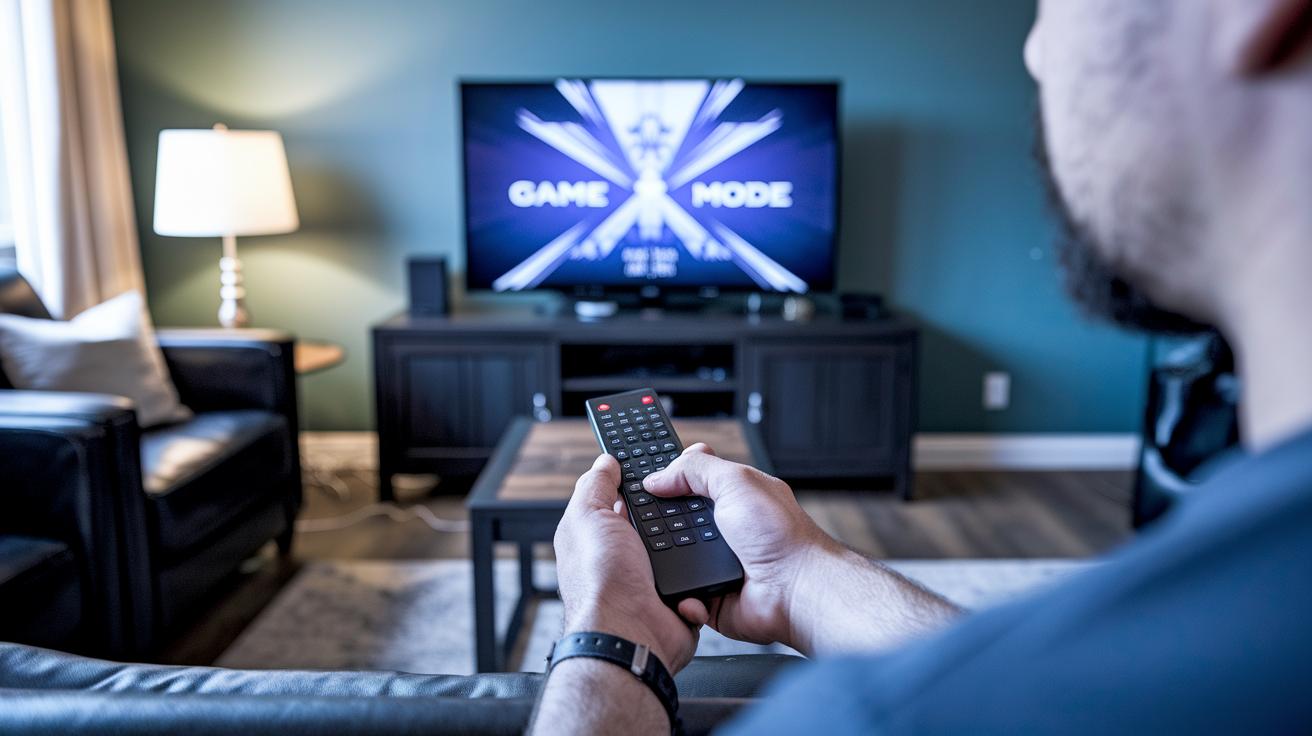
Input lag is that annoying delay between pressing a button on your controller and seeing the action on your screen. It can totally ruin the vibe, especially when you’re deep into a game on your PS5 or Xbox Series X. A good starting point is to turn off picture-enhancing options like MPEG Reduction, Noise Reduction, and Mosquito Noise. It’s like shedding extra weight so your console can move faster.
If you’re still noticing a delay, try switching to another HDMI port. Some ports just work quicker than others. Also, lowering the resolution might smooth things out, even if the graphics aren’t as sharp. It’s a bit like tweaking your game settings so performance wins over perfect visuals.
For folks with Samsung TVs, make sure Game Mode is turned on. And if you have an LG, kick on the Game Optimizer feature. These settings help reduce processing time and boost responsiveness.
- Turn off picture enhancements like MPEG Reduction, Noise Reduction, and Mosquito Noise
- Switch to a different HDMI input
- Lower your resolution for smoother gameplay
- Activate Game Mode on Samsung or Game Optimizer on LG
- Disable power-saving modes to cut down any extra delay
Every little tweak brings you closer to a smoother, more responsive gaming experience. Give these tips a try and feel the difference the next time you jump into your favorite game.
Fine-Tuning TV Settings for Lower Input Lag
Want your TV to react faster when you're in the heat of a game? Try digging into your TV's advanced settings. With a few tweaks, you can shave off precious milliseconds and make your screen feel more responsive, almost like reducing lag on your gaming rig.
First, turn off any picture-enhancing features. Things like MPEG Reduction, Noise Reduction, and Motion Smoothing might look cool, but they add extra delays. Some TVs even offer local dimming controls, which you should disable to cut down on processing time.
Next, switch on Game Mode or Game Optimizer. This feature minimizes extra processing after your commands hit the screen, letting you see your moves in real time.
It’s also worth testing different HDMI inputs. Sometimes one port handles the signal faster than another, so try them out to see which one gives you the quickest response.
Then, play with the resolution and refresh rate settings. Lowering the resolution or matching your TV’s refresh rate to your game can help make the connection between your input and what you see almost instantaneous.
Don’t forget to turn off any power-saving modes. These modes can slow down your display even when you're in the middle of a heated session.
Finally, check for any unique advanced settings on your TV. Some models include options like a response time adjustment or a setting called “Game Cal.” Setting these to minimum processing can help cut down input lag even more.
Tweaking these settings is a lot like fine-tuning your gaming setup. With these advanced adjustments, you'll notice a quicker and more responsive gaming experience, giving you that extra edge during intense gameplay.
Hardware and Connectivity Tweaks to Reduce TV Input Lag
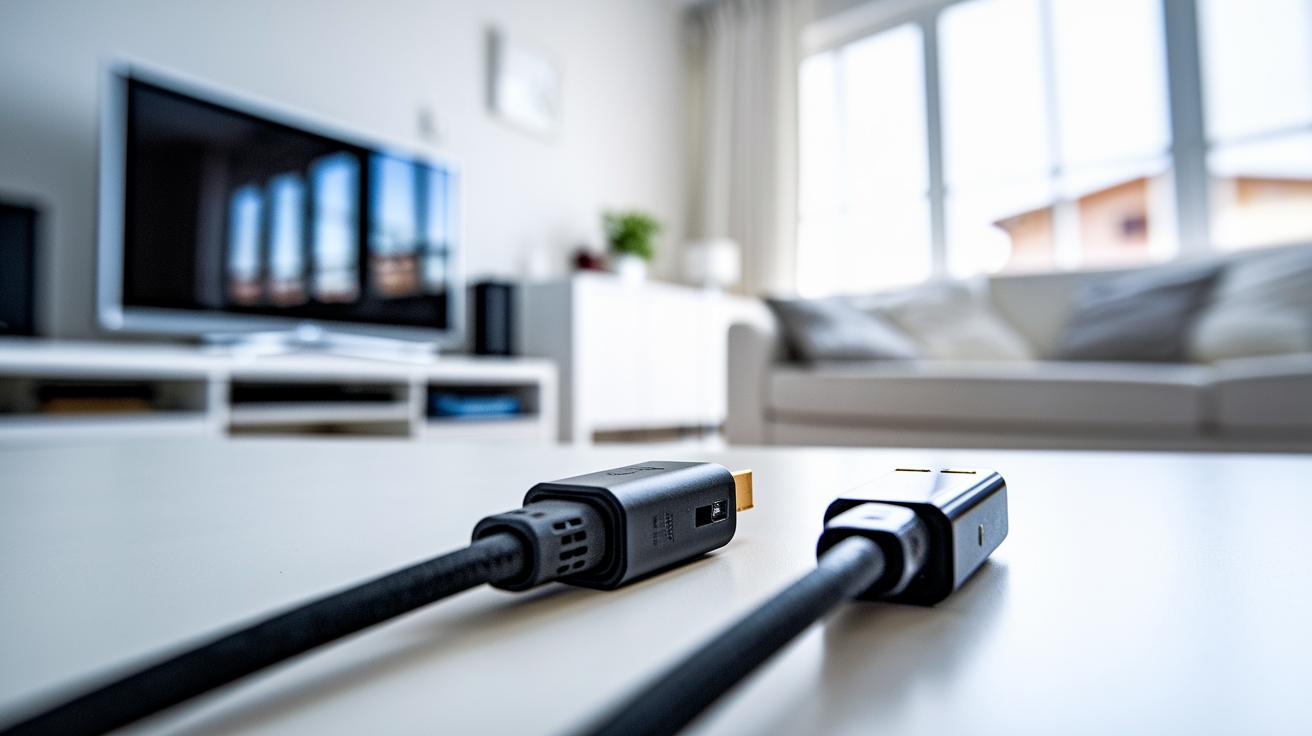
Tuning up your hardware and connectivity can seriously cut down TV input lag, even if you’ve already fine-tuned your TV settings. Sometimes, things like the quality of your cables, the firmware updates, or which HDMI port you use can really change your game. It's a bit like swapping out a sluggish mouse for a speedy one when you need that extra boost in the final moments of a match.
- Use high-speed HDMI cables that are built for low lag.
- Try out different HDMI ports to find the quickest one.
- Keep your TV firmware and device software up to date.
- Check your peripheral settings to make sure they aren’t slowing you down.
Think of trying different HDMI ports like picking the fastest lane on a racetrack; some just get you to the finish line quicker.
When you make these simple changes, you lessen the extra work your TV has to handle, making your gameplay smoother. These tweaks complement your internal TV settings, reducing the delay between pressing a button and seeing the reaction on screen so you can stay on top of the action.
Advanced Gaming Solutions: Enhancing TV Input Lag Performance
Gaming feels a lot smoother when your setup reacts fast. New tech like VRR, short for Variable Refresh Rate, helps your TV match the speed of your console or PC so things move seamlessly on screen. It makes watching fast-paced action feel more connected, almost like your TV is synced perfectly with you. Give your TV a quick check with a gaming test, it might reveal improvements that could boost your competitive edge.
Tinkering with your settings isn’t just flipping a switch; it’s a bit of trial and error. Try turning on gaming mode along with VRR and see how it cuts lag. Many newer models from brands like Samsung and LG have these built-in features that play well with the right gear. When set up correctly, smart TVs can feel nearly as responsive as desktop monitors.
Real-World Examples of Input Lag Improvement
- Samsung TVs show less lag when you activate VRR and game modes.
- LG TVs using their Game Optimizer mode seem to respond faster during live gameplay.
- Comparative tests suggest that, with the right tweaks, modern TVs can perform similarly to desktop monitors.
Keep testing and updating your setup, every millisecond counts when you're in the heat of battle.
Final Words
In the action, this guide helped break down quick fixes and settings tweaks to reduce TV input lag. It touched on disabling picture enhancements, switching HDMI ports, and fine-tuning display settings. The post also explained hardware improvements and advanced features like VRR to boost responsiveness. With clear steps on how to fix input lag on tv, you can feel more confident in optimizing your gaming setup. Keep testing and tweaking to enjoy a smooth, competitive gaming experience.
FAQ
Frequently Asked Questions
How do I fix input lag on my TV when gaming with consoles and a PC?
Fixing input lag on your TV for gaming on consoles or PC involves turning off extra picture processing features, enabling game mode when available, using high-quality HDMI cables, and updating firmware to streamline performance.
How can I fix input lag on my Samsung TV?
Fixing input lag on a Samsung TV means switching to Game Mode or Game Optimizer and turning off features like noise reduction. These adjustments cut down processing time for faster, more responsive display.
How do HDMI connections affect input lag?
HDMI connections impact input lag, as high-speed cables and less busy HDMI ports reduce the delay. Using quality cables and testing different ports can help deliver a quicker response for a smoother gaming experience.
What settings cause input lag and how do I optimize them for gaming?
Input lag is often caused by picture enhancements such as motion smoothing and noise reduction. Turning these off, lowering resolution, and activating game mode sharpens the display’s response for gaming.
Is there a general way to fix my TV from lagging?
Yes, overall TV lag can be fixed by updating firmware, adjusting settings to disable extra processing, choosing quality HDMI connections, and using game-specific modes to achieve a more responsive display.