Ever wonder why some streams keep you completely hooked? It might seem tough to set up a smooth YouTube broadcast, but really, it all comes down to a few simple steps.
Imagine a world with billions of viewers. In that huge space, the way you stream can make all the difference. This guide walks you through building a clear and professional live setup that grabs your audience from the start.
Even if you're just starting out, you can create a stream that feels as seamless as a pro's. Ready to level up your game and make your next live event unforgettable?
Essential Steps for Launching a YouTube Live Stream
YouTube is a top spot online, with over 2 billion logged-in users each month. Live streaming here has exploded, and more broadcasters are hopping on board every day. If you're just starting out, YouTube Studio makes it super easy with its direct webcam streaming. And if your channel has at least 1,000 subscribers, plus you’re verified and have the right phone, mobile streaming is ready for you too.
To get your stream rolling, just follow these simple steps:
- Sign in to your YouTube account and open up YouTube Studio.
- Hit the "Create" button and choose "Go Live."
- Set up your stream by picking a title, choosing your privacy settings, and deciding when to go live.
- If you plan on using an encoder like OBS Studio, grab your stream key and store it safely.
- Start your broadcast and keep an eye on the dashboard for real-time updates.
For those who want to take it a step further, using an encoder lets you add cool touches like custom overlays and multiple scenes. This method is perfect if you’re aiming for a polished, professional feel. Always do a quick test run to nip any issues in the bud, so your stream captivates your audience right from the get-go.
Configuring Your YouTube Studio for a Professional Live Broadcast
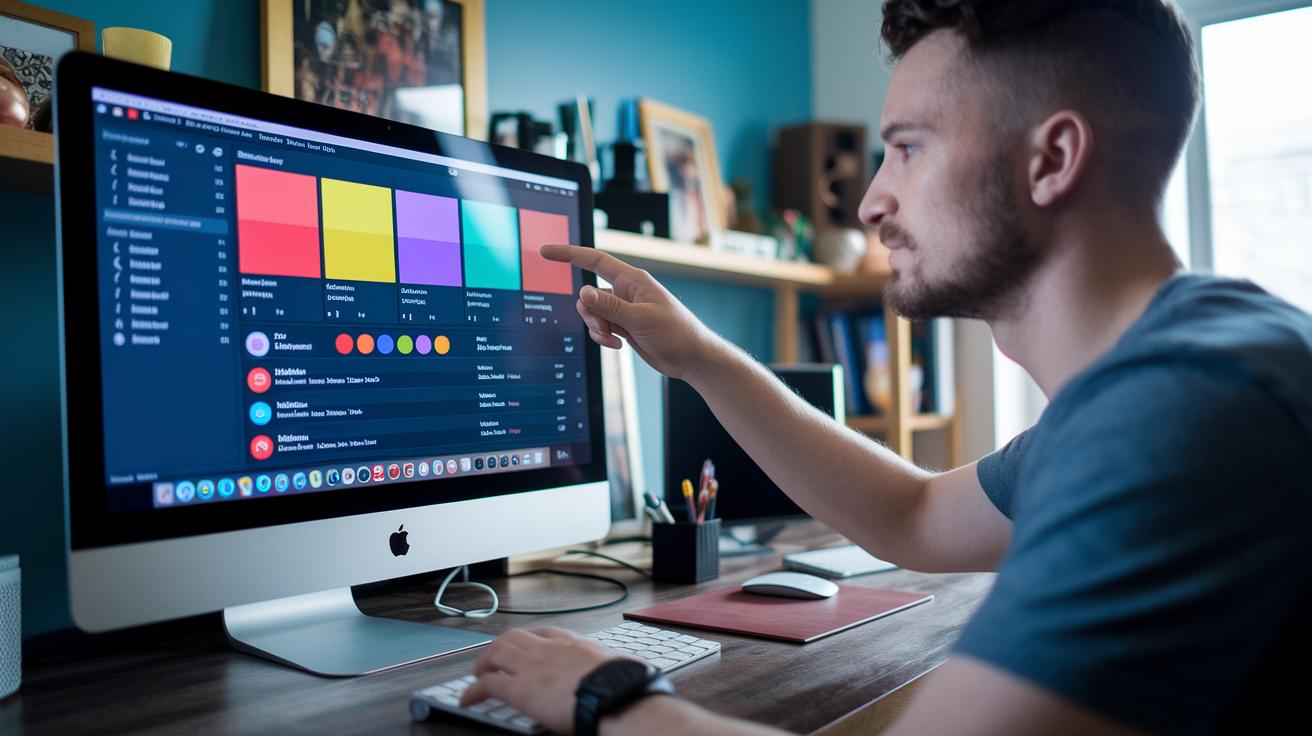
YouTube Studio puts you in the driver’s seat for your live stream. It lets you set up your stream title, add a description, and choose privacy options, whether you’re planning a live event or kicking off a YouTube Premiere. Picture naming your stream "Epic Game Night Live" so your audience instantly understands the vibe. The dashboard is super clear, making it easy to schedule your shows and keep everyone in sync about upcoming broadcasts.
Switching over to key settings is as easy as pie. Right in the dashboard, you grab your stream key, a sort of secret code that tells your encoder where to send your live feed. This is a must if you’re using programs like OBS Studio. And if you’ve ever used the Auto-Configuration Wizard in OBS, you know it simplifies setting things like resolution and bitrate. Plus, tossing in interactive tools like Streamlabs lets you add pop-up alerts and custom graphics to keep your chat lively and engaged.
Planning ahead with scheduled broadcasts really boosts your channel’s pro feel. With YouTube Studio, you can map out your live sessions so your viewers know exactly when to drop by for more epic content. It helps polish up your channel and builds a steady follower base, making every stream a step toward leveling up your online presence.
Selecting Essential Hardware and Streaming Software for YouTube Broadcasts
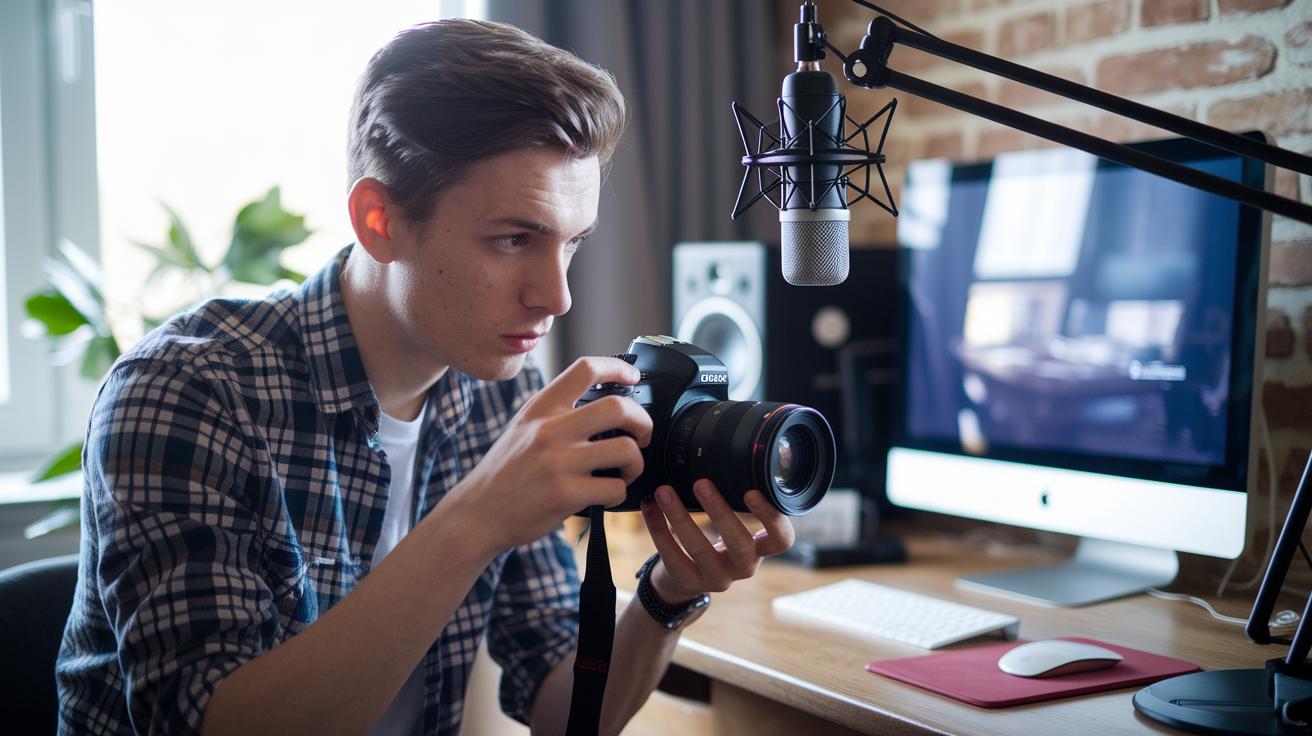
Getting your stream off to a great start means picking the right gear. A solid PC or encoder that can handle live video without freezing is essential. A high-def camera and a top-notch external mic make your visuals sharp and your sound clear, which really helps draw viewers in.
When it comes to building your setup, mixing strong hardware with smart software is the secret sauce. OBS Studio, for example, lets you add cool overlays and switch scenes easily, plus it plays nice with other devices. Here’s a quick list of what you might need:
- A PC or encoder with plenty of processing power
- A high-definition camera for crisp visuals
- A quality external microphone for clear audio
- Good lighting to boost your video quality
Once you’ve got your equipment, spend some time testing your setup to dodge any annoying glitches during your live broadcast. A neat blend of the right gear and fine-tuned software can turn a regular stream into something truly immersive. Keep your tech updates regular, and you’ll always have a smooth, engaging stream for your audience.
Device-Specific Streaming Setups for YouTube Live
PC Streaming Setup
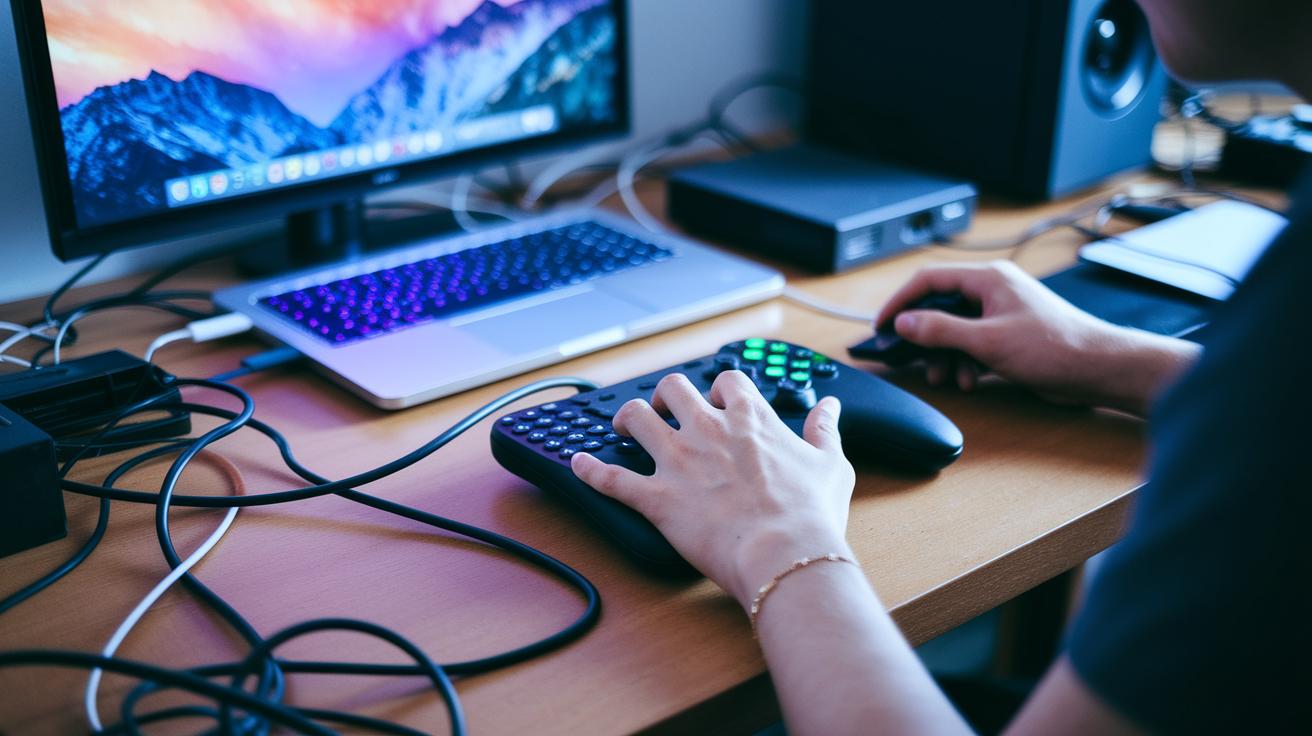
When you're streaming from your desktop using YouTube Studio, you'll need encoder software like OBS Studio. Start by tuning your computer settings for a smooth stream, adjust your resolution, bitrate, and audio-video sources so everything runs just right. It's a bit like setting up your ultimate gaming rig; you get to add custom overlays and switch between different scenes to keep things fresh and glitch-free.
Mobile Streaming Setup
If you're taking your stream on the road, you can start mobile streaming once you've hit 1,000 subscribers on an Android device running version 5.0 or later. Mobile apps make it a breeze to adjust your settings on the fly, ensuring your broadcast stays smooth and uninterrupted. This setup is perfect for when you want to capture spontaneous gaming moments without dealing with complicated tech.
Console Streaming Setup
For console gaming, capture cards are a real game-changer. They let you connect your PS4, Xbox One, or Nintendo Switch to your computer running encoder software, which handles your video feed reliably. This method bypasses the usual limitations of streaming directly from a console, so you get a high-quality broadcast while you focus on pulling off epic moves.
Enhancing YouTube Streams: Quality, Engagement, and Monetization Strategies
Getting your stream to run smoothly starts with the right encoding settings and bitrate. When video and audio match perfectly, you and your viewers feel like you're in the game together. Try different settings until you find that perfect balance where your gameplay shows up clearly and without any lag. Custom overlays and on-screen alerts can spark conversation and add fun to your live sessions.
To boost your stream's quality and income, try these simple ideas:
- Tweak your encoding and bitrate for the best quality.
- Add fun interactive elements like alerts and overlays so your viewers stay engaged.
- Use social media and monetization tools to earn extra money.
Beyond the tech tweaks, mixing great gameplay with smart ways to make money can really level up your stream. Donation alerts or ads let you bring in cash while keeping your audience tuned in to key game moments. With interactive alerts on-screen, viewers feel like they are part of every play and shout-out. Keep an ear on viewer feedback and adjust your setup as you go. Every live session is a chance to fine-tune your strategy and build a community that feels connected and ready to support your channel.
Troubleshooting and Optimizing Stability During YouTube Live Streams
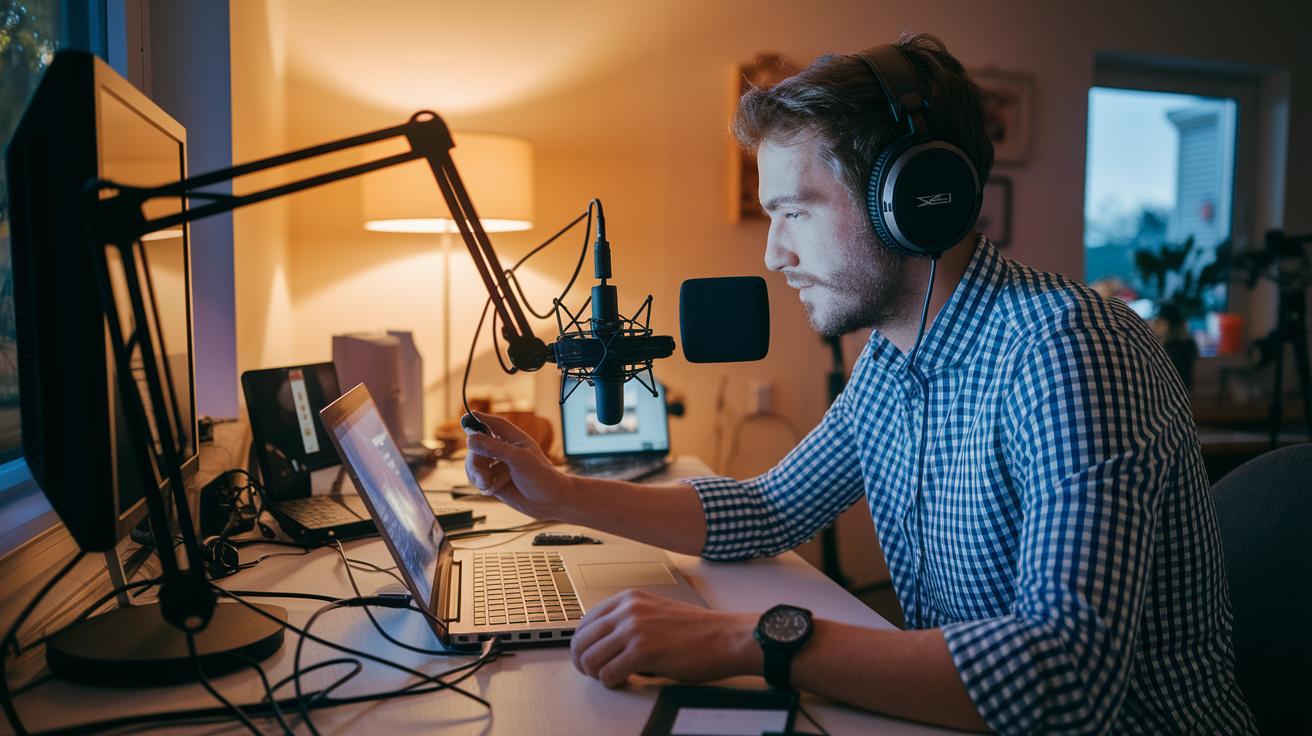
When your live stream starts acting up, it can feel like you're losing a hard-fought round. Sometimes the connection drops or lags out of nowhere because your settings might be off or your network is being a bit wobbly. Using YouTube Studio's live monitoring is like having a trusty sidekick who alerts you the moment something feels off.
Keep an eye on your bitrate and encoder settings; a quick check can stop interruptions before they become a full-blown headache. It’s kind of like double-checking your loadout before a big match, you want everything to work perfectly.
Network dips can sneak up on you too. Even a small drop might mess with your stream and leave your viewers frustrated. Before any big broadcast, try doing a test run to see how things hold up. And, if possible, have a backup plan ready, like a second internet connection, so you’re not caught off guard.
Running third-party monitoring tools alongside YouTube Studio gives you extra insight into how your stream is performing. When you notice odd viewer numbers or delayed chat responses, it might hint at hidden issues. Regularly tuning your settings and doing system checks can help keep the stream smooth, letting everyone enjoy the game without interruption.
Final Words
In the action, we broke down each key step for launching a smooth live broadcast on YouTube. We covered setting up YouTube Studio, choosing the right hardware, and fine-tuning streaming setups for desktop, mobile, and console. Our guide keeps things simple with clear tips for every part of the process.
We also explored how to boost stream quality, keep viewers engaged, and quickly tackle common issues. Use our guide on how to stream on youtube to build an impressive setup and enjoy a high-energy session.
FAQ
How do I stream on YouTube using my phone or Android device?
Streaming on YouTube on your phone means using the YouTube Studio mobile app. You need a verified account with at least 1,000 subscribers and an Android device running version 5.0 or later or the equivalent on iOS.
How do I live stream K-pop content on YouTube?
Streaming K-pop content on YouTube means setting up your live stream with YouTube Studio while following copyright guidelines. Make sure your settings match your content and that you use proper equipment for clear audio and visuals.
How do I stream on YouTube from my PC or laptop?
Streaming from a PC or laptop means logging into YouTube Studio, clicking “Create” and selecting “Go Live,” then configuring your settings. This setup supports both webcam streaming and encoder-based broadcasts.
How do I stream on YouTube using OBS Studio?
Streaming with OBS means setting up OBS Studio with your sources and obtaining your unique stream key from YouTube Studio to connect and push your live feed seamlessly.
How can I live stream on YouTube without 1,000 subscribers, and is this subscriber count required?
Live streaming on YouTube without 1,000 subscribers isn’t allowed on mobile, but desktop streaming via YouTube Studio is available. The 1,000 subscriber requirement applies to mobile devices only.
How do I watch a live stream on YouTube?
Watching a live stream on YouTube means visiting the live section on the app or website and selecting the stream. You can enjoy real-time broadcasts from various channels with just a tap or click.
Is it free to stream on YouTube?
Streaming on YouTube is free. You can use YouTube Studio and free software like OBS Studio, although investing in quality equipment might improve your broadcast.
What equipment do I need to live stream on YouTube?
The equipment needed includes a capable computer or encoder setup, a high-definition camera for clear visuals, an external microphone for crisp audio, and proper lighting to boost the overall stream quality.
How many subscribers do I need to make money on YouTube?
Making money on YouTube requires joining the YouTube Partner Program, which needs you to have at least 1,000 subscribers and 4,000 watch hours over the past year before monetization begins.