
Ever had your game suddenly freeze right when things get intense? It might be your internet acting up, and a quick latency test can help you spot the problem. This simple check measures your connection’s basic speed signals, like ping and jitter (which tells you about small delays), so you can see if your setup is ready for smooth play and crystal-clear video calls.
Give it a try and you’ll quickly see how your system is performing. Picture it like checking your heartbeat before you jump into another round. In this guide, we’ll walk you through how to run the test with just one click and a few easy steps, so you’re always ready for action.
internet latency test: Quick and reliable insights
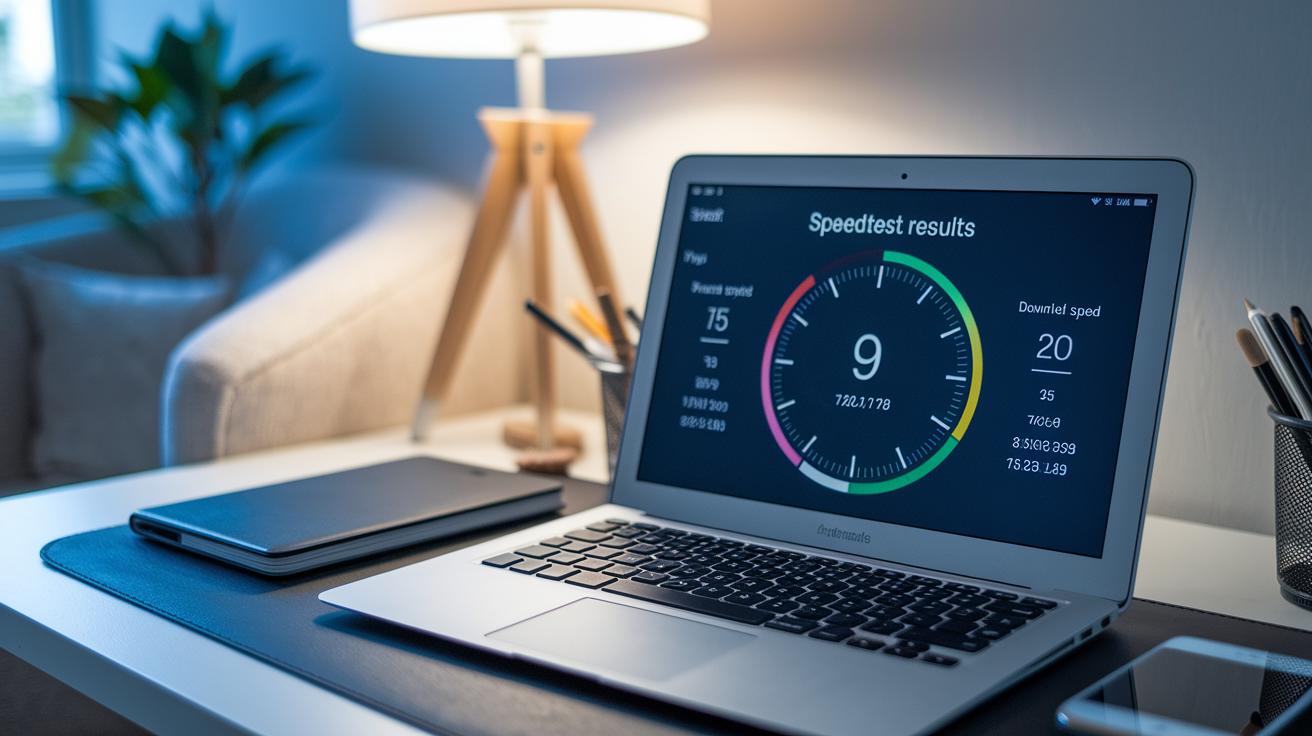
Open your web browser and type in the Speedtest site address. Hit enter, and before you know it, the page pops up, ready for action.
Next, click the Go button. This starts the test that checks both how fast your data moves and how quickly your connection replies. It measures the round-trip time from your computer to the data center, all in milliseconds. Just hit Go and watch the numbers roll in.
Once the test is done, take a look at the results on your screen. You'll see details like ping (the delay in ms), jitter (how much that delay changes), and your download and upload speeds. For example, you might see "Ping: 28 ms, Jitter: 4 ms." These numbers help you figure out if your internet is ready for some smooth online action.
Then, check for a shareable link in the results. This link makes it easy to show your friends the test details so you can compare connections or sort out any issues together.
Finally, if you see an error message like "Latency test error," it usually means that some ports or addresses needed by the test are being blocked by your network. It might say something like "Your network might be restricting necessary ports," which means there’s a little hiccup that could be causing the problem.
Essential Latency Metrics: Ping, Jitter, and Packet Loss

Ping is like the heartbeat of your connection, it tells you how long a tiny packet of data takes to go to a server and back. If you see a ping around 25 ms, you're in great shape for fast gaming and smooth video calls.
Jitter is all about the ups and downs in that ping value. Even with a low average ping, if the number keeps jumping around, your gameplay can feel choppy. It’s kind of like riding a bike on a bumpy road. Ever get that sudden lag right when you need a smooth move? That’s jitter at work.
Packet loss happens when some of those data packets vanish mid-transit. Even a small loss can mess with your game, drop your calls, or ruin a download. Too many lost packets can really bring down your network’s overall score, making everything feel off.
Think of bandwidth as the width of a highway, it shows how much data can zip through at once. But it doesn't fix delays measured by ping and jitter. Keeping an eye on these helps you spot issues before they become full-on performance killers.
Understanding Internet Latency Benchmarks for Gaming, Streaming, and Calls

When you're gaming online, every little moment matters. A ping below 50 ms is what you really aim for. If it creeps near 100 ms, it starts to feel like your game is held back by a slow connection. Imagine pulling off that epic combo move only to see a lag that ruins your timing. It's like your game just missed the moment.
Streaming your favorite shows or movies works the same way. Once latency hits about 200 ms, things can go off. The video might start to buffer or stutter, which feels a bit like watching a movie where the picture freezes every few seconds. It's hard to enjoy anything smooth when you keep getting those breaks.
Video calls are no different. Keeping your delay under 150 ms makes for clear and smooth chats. If the delay creeps up, you could end up with choppy conversations where words overlap or sound like they're coming in with a weird echo. It makes it tough to keep up with what everyone is saying.
Then there's jitter, which is the wild card. Even if your average ping is just fine, sudden spikes can freeze video or drop bits of audio. This makes your call or game feel unpredictable and out of sync.
So, by checking these numbers, you can quickly tell if your connection is ready for a fast-paced game, a high-quality stream, or a smooth video call, or if it might need a little boost.
Top Internet Latency Test Tools and Diagnostic Software

When it comes to checking your network, you want the right tool at your fingertips. Speedtest runs right in your browser, quickly showing you both bandwidth and responsiveness. It even gives you a shareable result link so you can easily show off your connection’s performance. This quick test helps you decide if your setup is ready for that next gaming session or a binge-worthy streaming marathon.
For local troubleshooting, PingPlotter Standard is a solid choice. It gives you a live visual map of data packets, helping you see exactly where things might be slowing down. And if you're looking for a deeper dive into your network’s past performance, PingPlotter Professional records data over time. It’s like having a diary for your connection, tracking trends so you can spot any long-term issues. Meanwhile, PingPlotter Cloud offers a neat centralized dashboard for remote network analysis, making it simple to keep an eye on multiple sites from afar.
| Tool | Primary Use | Unique Feature |
|---|---|---|
| Speedtest | Bandwidth & Latency Measurement | Shareable result link |
| PingPlotter Standard | Local network troubleshooting | Real-time path visuals |
| PingPlotter Professional | In-depth diagnostics | Historical logging |
| PingPlotter Cloud | Remote network analysis | Centralized dashboards |
Each of these tools plays its own unique role. Speedtest is perfect for those quick checks, giving you a snapshot of your network performance in seconds. Its simple interface makes it great for anyone, whether you’re a casual user or a hardcore gamer. PingPlotter Standard, on the other hand, lets you see a live map of your connection’s route, which makes it easy to pinpoint where delays might be happening. If you need a deeper look, PingPlotter Professional helps you review historical data to understand shifts in your network over time. And for those times when you need to monitor connections that aren’t right next door, PingPlotter Cloud is your go-to for remote analysis.
Use these tools often to nip issues in the bud and keep your connection running smoothly for gaming, streaming, and everything you do online.
Troubleshooting and Reducing High Internet Latency

High internet latency can be caused by many things, like a busy ISP, long distances for your data to travel, interference from other devices on your Wi-Fi, or even old hardware. If you notice lag while gaming or streaming, start by checking your network and setup. For example, switching from Wi-Fi to a wired Ethernet connection can be a game-changer, like going from a bumpy road to a smooth highway.
Here are some practical steps you can try:
- Switch to a wired Ethernet connection. This helps avoid the dropouts and interference common with wireless setups.
- Update your router firmware. Keeping your router current ensures you get the best speed and security.
- Close background apps that use a lot of bandwidth. This makes sure your gaming or video calls get the smooth treatment they need.
- Turn on QoS (Quality of Service) in your router settings. QoS helps your network decide which data should move faster, keeping your calls and games in sync.
- Run tests during busy times and quieter times. If you see more lag during dinner hours than in the mid-afternoon, it could mean your ISP gets crowded when more people are online.
Regularly checking your connection and trying these fixes can lead to a much smoother online experience. Before your next big game or streaming session, give these steps a shot and enjoy less lag and delay.
Advanced Command-Line and Home Network Latency Tests

Let’s kick things off with your computer’s built-in command tools. On Windows, open the command prompt and type "ping -n 100" followed by your target server. This sends out a hundred packets and gives you a quick look at the minimum, average, and maximum latency. On macOS or Linux, you just swap in "ping -c 100" instead. It’s like timing each lap in a race, quick and clear.
Next, check out traceroute options. On Windows, you’d type "tracert" while on macOS or Linux, the command is "traceroute." This command shows every step your data takes on its journey to the destination. It even highlights small lags at some points. Ever notice how one tiny delay can throw off your game? That’s what this tool tells you.
Another useful tool is pathping. It mixes the best of ping and traceroute by showing you both packet loss and latency for each hop. Just type "pathping" followed by the server’s address and watch as it puts everything together. It’s a handy way to spot exactly where things might be slowing down.
Finally, think about running these tests on a schedule. You can use cron on macOS/Linux or Task Scheduler on Windows to set up repeated tests. Doing this helps you notice trends or sudden spikes over time. In the end, a clear picture of your network’s performance is just a command away.
Final Words
In the action, the article broke down every step of running an internet latency test using Speedtest and examined key metrics like ping, jitter, and packet loss. It showcased top tools and offered troubleshooting strategies for reducing delay, even covering command-line techniques for home network checks. This clear walkthrough helps you get a solid grip on your connection performance. Testing your network might lead to smoother gaming and streaming, so keep experimenting and improving your setup with an internet latency test.
FAQ
What free internet latency test tools are available?
Free tests like Google speed test and Ookla speedtest offer fast assessments of your ping and connection delay. They work over browsers without needing extra software.
How do I check my internet latency?
Checking your internet latency involves running a speed test, which measures the round-trip delay (ping) in milliseconds. Simply visit a trusted test website, click “Go,” and review the results.
What is a good latency for internet, and are values like 220 ms or 12 ms acceptable?
Good latency varies by use; for gaming, under 50 ms is ideal. A 12 ms delay is excellent, while 220 ms is high and may cause noticeable lag during online activities.
Can my ISP, such as Xfinity, provide an internet latency test?
Some ISPs like Xfinity offer built-in latency tests on their websites. These tests help you quickly see your network delay performance directly from your provider.