Ever had that annoying moment when you press a key and nothing happens? It’s like the game just freezes for a second, messing up your perfect move.
Lag can creep up when your network or equipment isn’t working its best. Every tiny delay counts, especially in the heat of a match.
In this guide, we’ll run through some quick fixes to reduce those delays and make your game run smoother. You can learn how to check your game server, restart your router, and even close apps that might be stealing your focus.
Stick around, and let’s get you back in the game fast.
Game Latency Troubleshooting: Quick Action Steps
When lag strikes, jump into action. Latency is that annoying delay between hitting a key or clicking and the game reacting. It’s often caused by your network setup, slow hardware, or programs hogging resources. Good gaming latency is usually between 20-40 ms, and if it's under 70 ms, you're in the clear. But if it goes past 100 ms, you might start feeling those frustrating delays when the action heats up.
Here's a quick game plan:
- Check the game server first. Make sure it isn't down for maintenance. A fast way to check is by pinging – just open your command prompt and type ping 8.8.8.8 to see how quick it responds.
- Restart your network gear. Give your router and gaming device a reboot to clear up any sending or receiving hiccups.
- Close any extra apps. Shut down browser tabs, downloads, and anything else that might be eating up your bandwidth or CPU.
- Run ping and traceroute tests. They help you see if there are any delays along your network path. A simple ping command can show if poor data packet flow is causing the slowness.
- Update your gear. Make sure your network adapter and graphics card drivers are current. Check that your hardware can handle your game’s demands.
Following these steps can seriously cut down online gaming delays. A few quick fixes can turn a laggy session into smooth, uninterrupted play. Keep your ping tools ready so you can jump in and troubleshoot the moment lag appears.
Network Diagnostics for Game Latency Troubleshooting
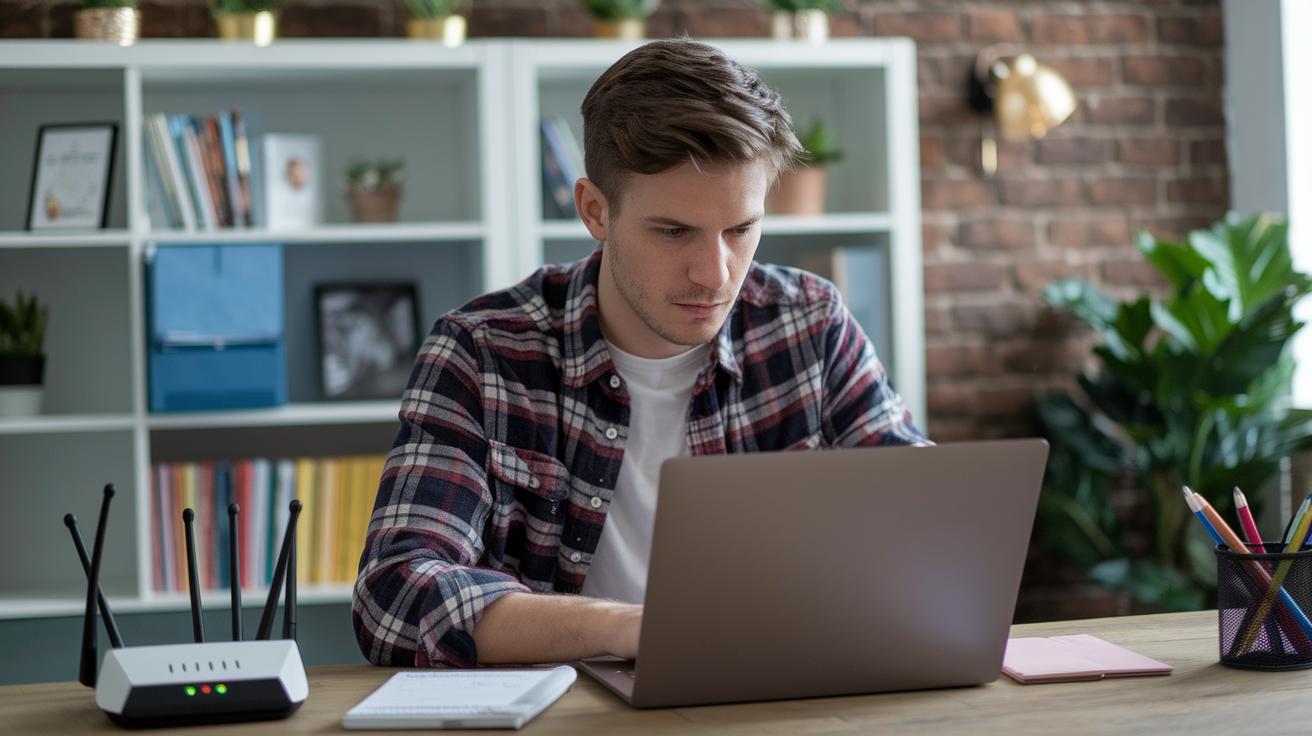
First, try a ping test to check how fast your network sends and receives data. Just open your command prompt and type ping 8.8.8.8. This test shows you in milliseconds how long it takes for your packets to make the round trip. It’s a quick way to see if there’s any delay.
Next, run traceroute to see the path your packets travel on the Internet. Traceroute lists every stop along the way so you can spot where delays happen. For example, if one hop shows a big lag compared to the others, that might be slowing you down.
Also, take a minute to check that your router’s firmware is current. Old firmware can slow things down unexpectedly. And while you’re checking, look over your Ethernet cables. Even a tiny fray or damage can mess with your network speed.
Lastly, tweak your router’s Quality of Service settings to give gaming traffic top priority. This little adjustment can help cut lag by making sure your game data gets the muscle it needs over other types of traffic.
Follow these steps one by one, and you should be able to find and fix any issues that might be holding back your connection. Happy gaming!
Hardware Evaluation in Game Latency Troubleshooting
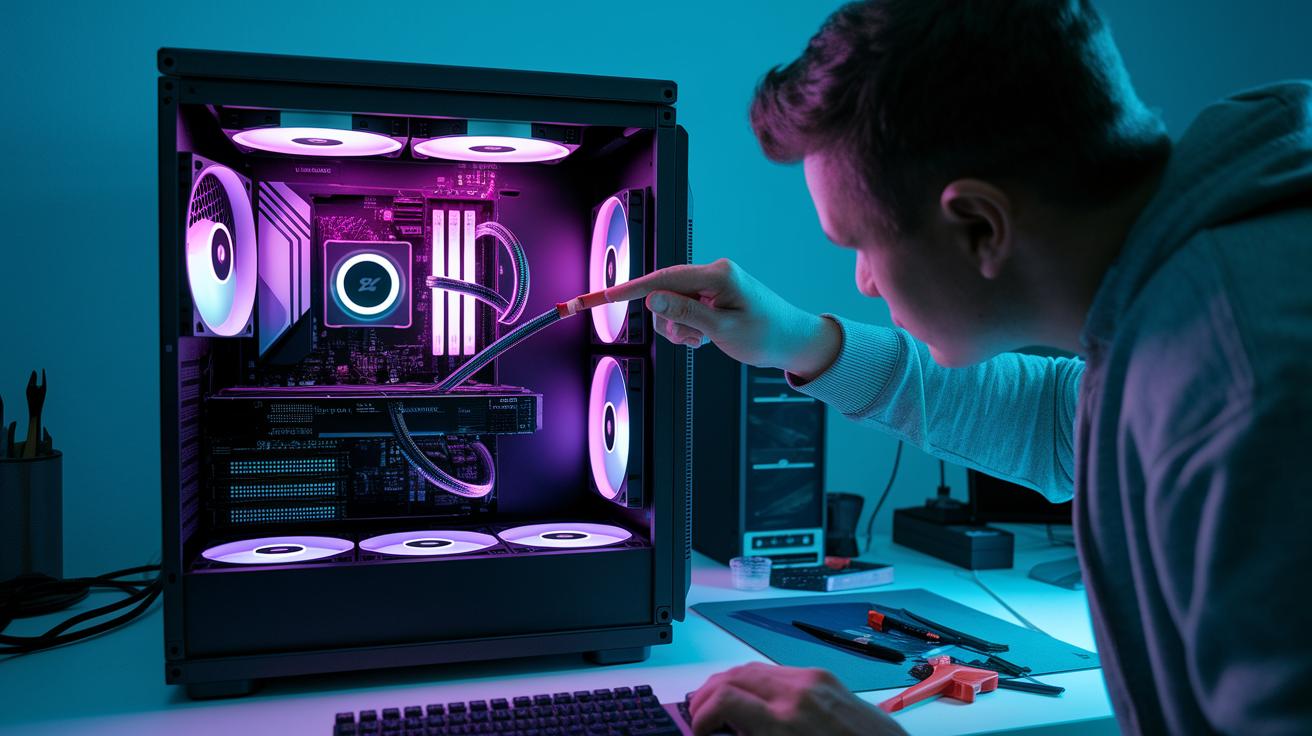
First, fire up your computer or console's Task Manager and check the CPU and memory usage. If you see a spike like 95% CPU usage, it might explain why the game is lagging. This first step helps you figure out if your device just can’t keep up.
Next, take a look at your network adapter. Open up Device Manager, find the network adapter, and see if there’s an update available. Outdated drivers can act like bad teammates, slowing your game down just like a slow internet connection.
Then, inspect your USB and Ethernet ports. Unplug your cables and plug them back in to make sure they’re secure. Sometimes, a frayed or loose cable can cause lag in an instant, so it’s worth a quick check.
Finally, test your game on other devices. If the lag happens on several devices, it’s likely a network issue. But if only one device is affected, the problem is probably with that specific hardware.
Software and Settings for Game Latency Troubleshooting
Ever get hit with lag even though your connection is solid? Sometimes, it’s your own device software slowing you down. Imagine you’ve got a bunch of browser tabs open while a file-sync app runs in the background. It’s like having a clumsy teammate on your side, hogging resources and causing delays when you need your game to respond fast.
Next up, show some love to your drivers. Updating your GPU and network adapter drivers is a simple trick that can really boost performance. Think of it as swapping out an old bike for a speedy sports car before jumping into a high-stakes race.
Lowering your in-game resolution can also help trim down input lag. When your game pushes your hardware too hard, dialing back a bit on resolution, turning off V-Sync, or lowering texture quality can smooth things out, giving you faster and more responsive gameplay.
And don’t forget to check if there are any game or OS patches available. Keeping everything up-to-date can iron out glitches that cause lag.
- Close extra browser tabs and sync programs that use too many resources.
- Update your GPU and network adapter drivers.
- Lower resolution, turn off V-Sync, and reduce texture quality.
These tweaks can help make your gaming experience feel light and responsive.
Game Latency Troubleshooting: Solutions for Seamless Play
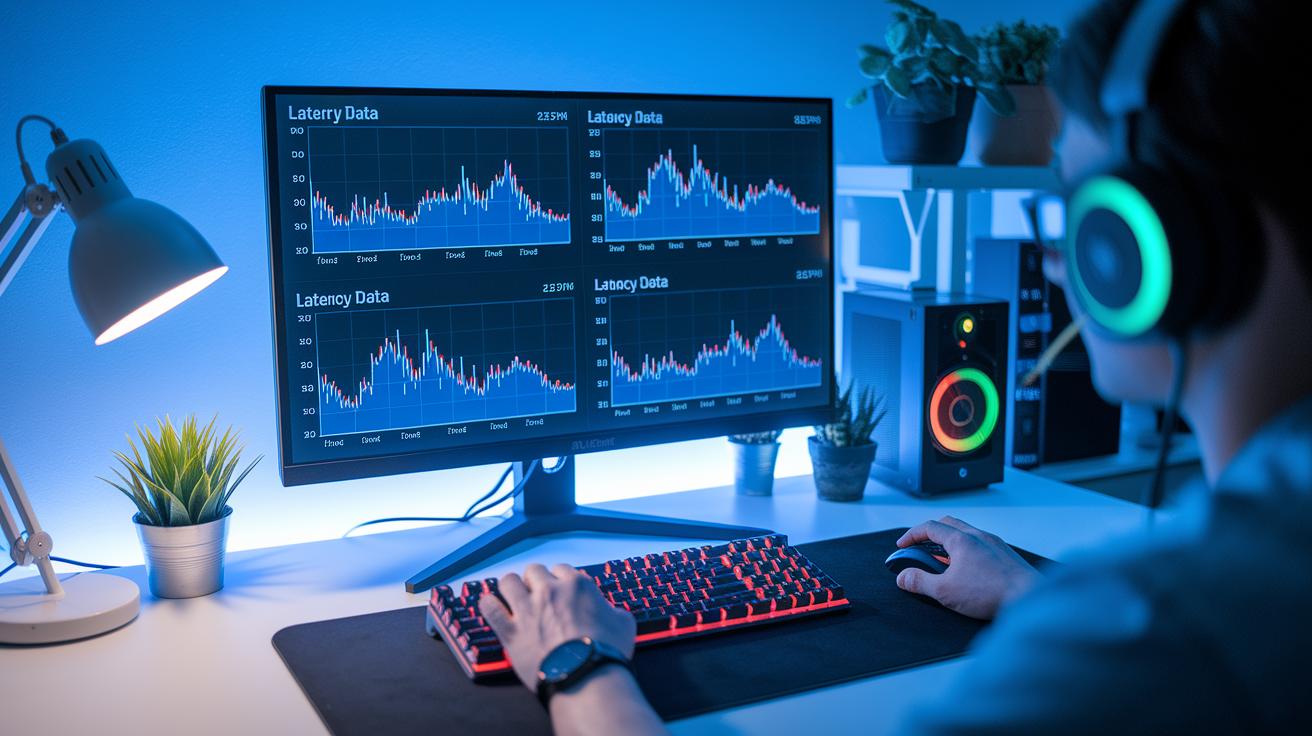
Start by capturing your ping and traceroute results during a few gaming sessions. Keeping a record like this helps you spot sudden spikes that might mess with your gameplay. For example, run a ping test while you’re in the game and jot down each millisecond value. Later, run a traceroute test to see which part of the network is adding extra delay. It's a bit like checking every checkpoint in a race to find where you lose momentum.
Don’t forget to check your jitter too. Jitter is just the difference in time between one ping and the next, it’s like noticing if your game suddenly lags or stutters. Use the diagnostic overlays in your game or your performance tools to catch these tiny timing shifts. A quick jump in jitter can show you that something is acting up.
Here are some simple steps to help you analyze digital delay:
- Run several ping tests on a steady IP (say, 8.8.8.8) and note the results.
- Do traceroute tests to see if any specific points consistently show more delay.
- Use the performance overlay in your game settings to keep an eye on real-time latency and jitter.
- Compare your usual smooth session numbers with those from laggy moments. This helps you figure out if a change, like a new update or tweaking your hardware, has an effect.
By keeping a solid log, you can spot patterns and test any modifications to see if performance improves. For instance, if you update your router’s settings and notice your ping values drop consistently, you know you’ve made a worthwhile change.
Advanced Latency Reduction Strategies in Game Latency Troubleshooting
Want to boost your game performance? Start by cutting down congestion from the beginning. Try turning on your router's QoS or traffic shaping settings. This trick reserves part of your internet just for your game, kind of like giving it its own fast lane when traffic is heavy.
Next, swap your Wi-Fi for a wired Ethernet connection. Wired setups help you dodge the interference and random delays that come with wireless networks. It’s a small change that can make your game feel much smoother, reducing that annoying input lag.
Upgrading your hardware is another key move. Make sure your PC has a speedy CPU, a strong GPU, and a fast NVMe SSD to process data quickly. Pair these with low-latency keyboards and gaming mice, and you'll see a big drop in the time between your actions and what happens on-screen.
Also, keep an eye on your game server status. Check for any server issues or updates before you assume your connection is at fault. Sometimes, switching to a server that's closer to you can significantly cut down the delay.
| Strategy | Tip |
|---|---|
| Router Settings | Turn on QoS and traffic shaping |
| Connection Method | Switch to a wired Ethernet connection |
| Hardware Upgrades | Invest in a fast CPU, GPU, NVMe SSD, and low-latency peripherals |
| Server Check | Monitor server status and choose closer servers |
Review these steps to fine-tune your gaming setup, and test each change to see if your lag goes down.
Final Words
in the action, we explored how to troubleshoot game latency effectively. We dove into quick fixes like rebooting routers, running ping tests, and checking hardware. Next, we covered software tweaks and settings adjustments that help cut input lag. We even looked at measuring latency metrics for further insights. Each tip builds toward a smoother, more competitive play. Keep experimenting with game latency troubleshooting to boost performance and climb the ranks.
FAQ
Q: What is a good or bad latency for gaming?
A: The good latency for gaming is typically between 20 and 40 milliseconds, while delays over 70 milliseconds can be noticeable. An 80ms latency might work for casual play but isn’t ideal for competitive gaming.
Q: How do I reduce or fix high latency issues during gaming?
A: Reducing high latency means checking your router connections, rebooting devices, closing extra software, and updating drivers. Running ping tests and verifying server status can also pinpoint and fix issues.
Q: How can I improve gaming latency on Xbox?
A: Improving Xbox latency involves using wired connections, updating firmware, and tweaking network settings like Quality of Service (QoS) to prioritize gaming traffic, resulting in smoother gameplay.
Q: Where can I find community advice on game latency troubleshooting on Reddit?
A: Community advice on Reddit comes from dedicated discussion threads where users share their tips and fixes. These posts cover troubleshooting steps, network tweaks, and useful practical insights.
Q: How much latency is good for gaming earbuds?
A: Good gaming earbuds usually have a latency under 40 milliseconds to keep audio in sync with gameplay, providing a more immersive and responsive gaming experience.