Ever been deep in a game only to get slammed by lag that ruins the moment? It might be caused by dusty computer fans or a router needing a quick reset.
In this guide, we're sharing some simple fixes that you can try right away. Little things, like cleaning your rig or tweaking your network settings, can really smooth out your gameplay.
Imagine wiping out lag so your game feels as sharp as your skills. Ready to jump in and make it happen?
Practical Steps to Reduce Game Latency Immediately
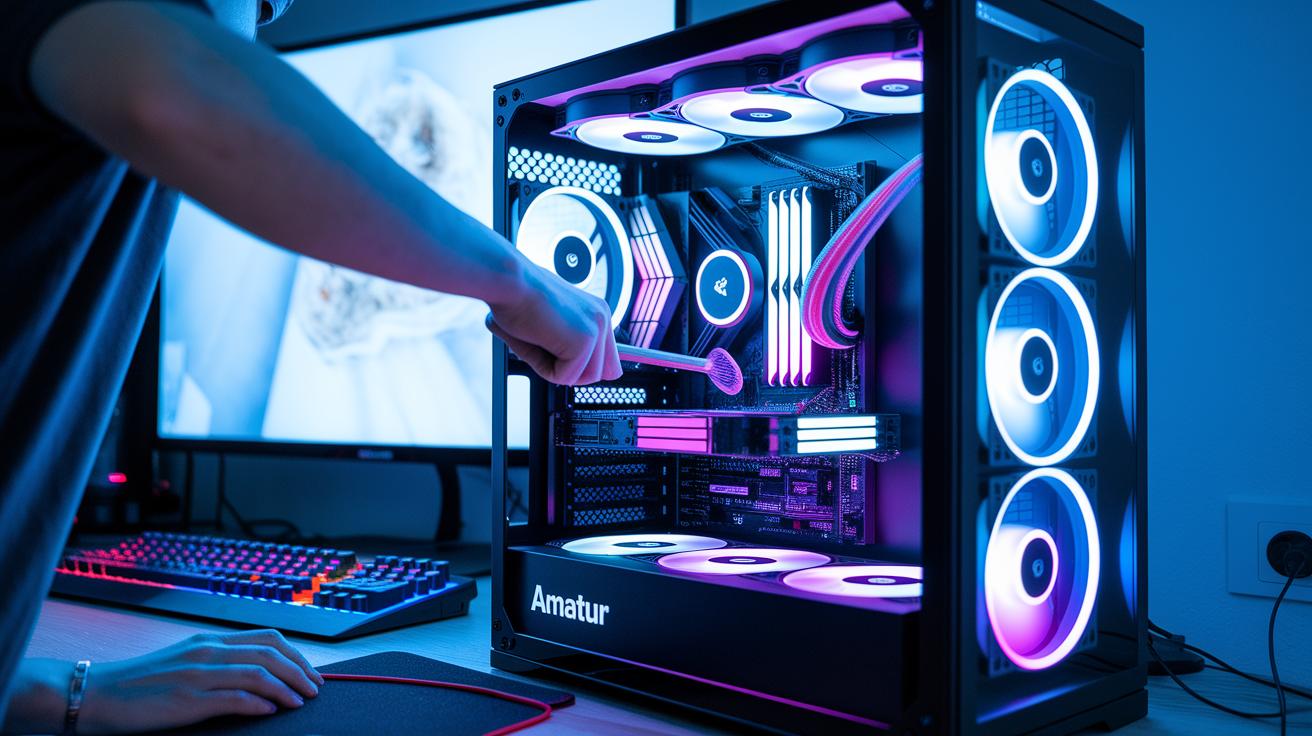
First up, give your rig a once-over. Dust can clog up your computer's inside, making it overheat and slow things down. Open it up safely, grab a can of compressed air, and blow out the dust from your fans and heatsinks. This simple cleanup helps keep things cool so you can game without those annoying slowdowns.
Next, give your router some love. Check if it needs a firmware update, restart it regularly, and clear its cache. A well-tuned router does a better job at managing your game data and can really cut down on lag. It’s a good idea to run an internet speed test to see your download, upload, and ping. Generally, anything under 100 ms is okay, but if you’re in the 20–40 ms range, you’re in prime gaming condition.
Here are a few extra tips for cutting down lag even more:
- Close any apps running in the background to free up resources.
- Turn off automatic software updates temporarily so they don't interrupt your game.
- Use an Ethernet cable or a reliable powerline adapter since wired connections are usually more stable than Wi-Fi.
- Disconnect devices you’re not using to reduce network congestion.
- Check your game server’s ping and choose a region that’s closer to you if you can.
Also, consider adjusting your game's frame rate settings to take some pressure off your graphics card. And if lag issues keep coming back, you might need to upgrade your router hardware or contact your ISP. Each tweak you make, whether on your computer or in your network, adds up to a smoother, more responsive gaming experience. Enjoy your game and say goodbye to lag!
Measuring and Diagnosing Game Latency Issues

Start by checking your latency with a simple ping test. Open your command prompt and type "ping 8.8.8.8". This sends a small packet to a server and waits for its reply. The reply time is measured in milliseconds. Generally, you want a number below 100 ms, with the best range being 20 to 40 ms. If the result is higher, you might see lag or slow game response times.
Next, figure out if the delay is coming from your network or just one device. Try running tests on different devices using online delay tools or apps made for gamers. If every device has high latency, then the issue is likely with your connection or router settings. But if only one device is slow, it might have a hardware issue or a problem with its network adapter. Running a few tests like this helps point you to the real source of the lag.
Sometimes, extra factors like interference from other devices or old network drivers can cause delays. Testing your connection on several devices can give you clues and help decide if a firmware update might be needed.
how to reduce game latency: Experience smooth play
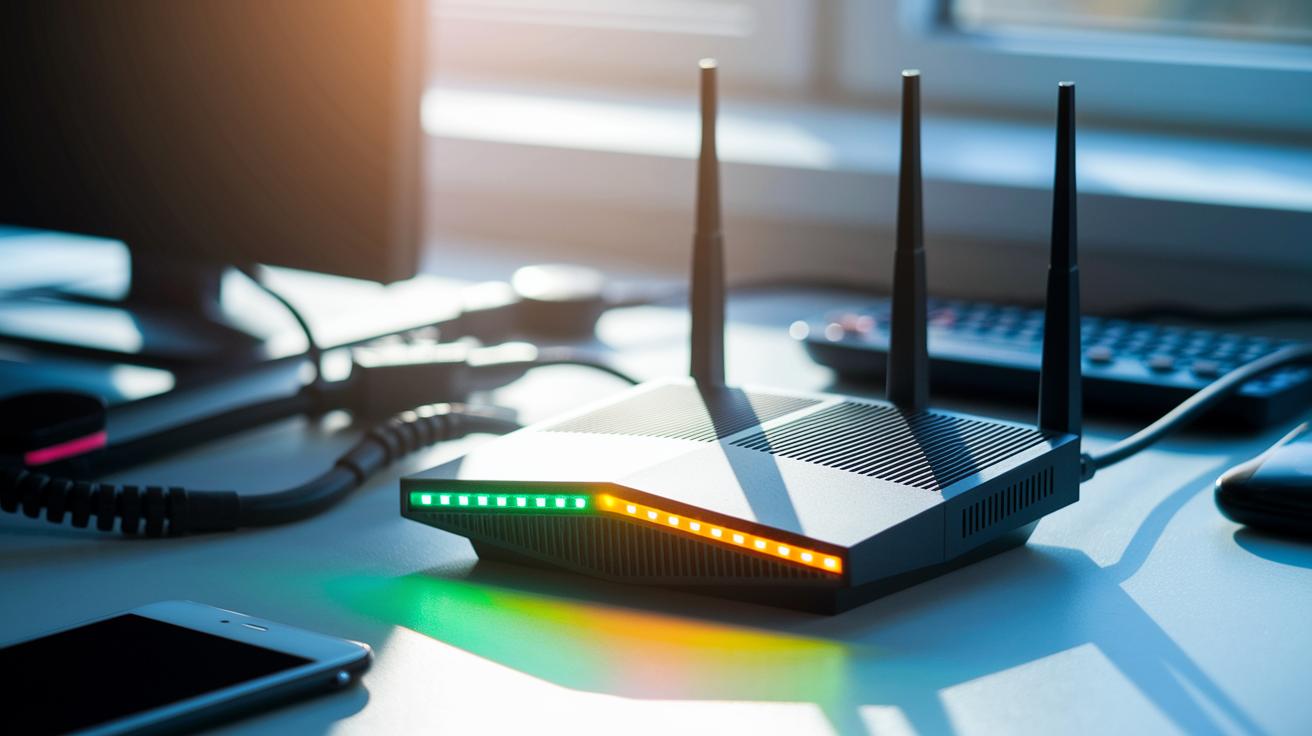
When lag starts ruining your game, a little router TLC can make all the difference. First, give your router a quick upgrade by updating its firmware and clearing out its cache. It’s a bit like tidying up your gaming gear; a clean router handles game data smoother, which means fewer frustrating delays.
Next, consider where your router is set up. Find a clear, open spot free from too many walls or gadgets. Think of it this way, if your router were a speaker, you’d want it placed just right for the best sound. The more open the space, the clearer your connection signal.
Here’s another cool trick: enable QoS on your router. This lets you give your gaming traffic VIP treatment by reserving some bandwidth just for your game. It’s like having your own fast lane while other devices cruise in the slow lane. If your WiFi feels jam-packed, try switching to a less crowded channel. And if things are still choppy, consider using a wired connection, nothing beats a stable, low-latency link.
| Step | Description |
|---|---|
| Update Firmware | Keep your router current and clear its cache |
| Enable QoS | Reserve bandwidth for your gaming to cut down on lag |
| Optimal Placement | Set your router in an open area free from obstructions |
| Switch Channels | Change to a less congested channel to ease network traffic |
| Use Wired Connection | Opt for Ethernet or powerline adapter for extra stability |
These simple tweaks can help you enjoy smoother, more responsive gameplay every time you log on. Happy gaming!
Game and System Settings Tweaks to Cut Input and Rendering Delays
Tweaking your game and system settings is a quick way to cut down on input lag and delays in rendering. Dropping your graphic quality and screen resolution lightens the load on your GPU (that’s the part that handles all the game’s visuals). For example, switching from Ultra to Medium can help your system breathe easier during those intense matches. Lower settings mean your hardware isn’t working overtime, which helps your frame rates stay smooth.
Turning off V-Sync is another neat trick. When you disable it, you stop extra frame buffering that can slow down what shows up on your screen. And if you set your frame rate to match your monitor’s refresh rate, your gameplay can feel steadier with less lag. One quick tip: if you notice your frame rates are jumping around, try setting a manual frame limit to keep things stable.
Another tip is to update your GPU and network-adapter drivers. Also, bump up your mouse and keyboard polling rates to make everything respond faster. Plus, if you can, use an SSD or NVMe drive. These drives load game assets quicker and help slam-dunk those stutters that can break your flow.
Even little changes add up fast. Think of it like fine-tuning a race car; every tweak sharpens your edge, making your moves quicker and your visuals crisper. All these adjustments work together to keep your gaming smooth and super responsive.
Hardware Upgrades and Advanced Techniques for Minimal Latency
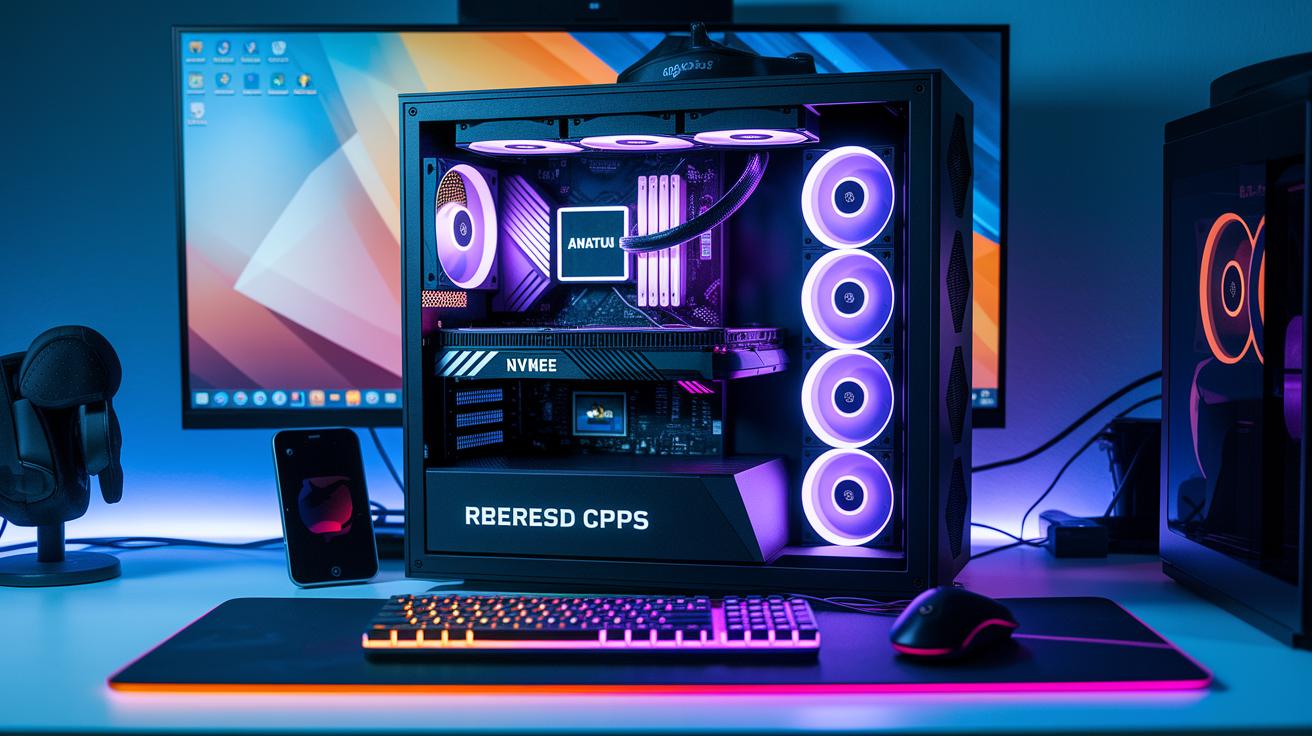
When every millisecond counts, stepping up your hardware is a quick way to cut down lag and bump up your connection speed. Upgrading to a faster CPU or GPU can seriously boost your reaction times, whether you’re gaming on a PC, Xbox, or PS5. Swapping in an NVMe SSD helps trim load times and stops stutters right when they matter most. And even a dedicated gaming network card clears up your data flow like an express lane in the middle of a hectic match.
Switching over to full-fiber broadband or using high-throughput powerline adapters makes your connection even stronger, keeping delays to a minimum when the pressure is on. Then, there’s the trick of advanced routing techniques. Setting up custom VPN paths lets you pick the best server regions to keep your round-trip times super low. It’s like getting a secret boost when you need it the most in tight, competitive games.
| Hardware Upgrade | Latency Impact (ms) |
|---|---|
| CPU Upgrade | -5 to -10 |
| GPU Upgrade | -3 to -8 |
| NVMe SSD | -2 to -5 |
| Gaming Network Card | -1 to -4 |
| Fiber Broadband | -10 to -20 |
By blending smart hardware investments with clever networking tweaks, you can create laser-fast responses that keep your gameplay smooth, even in the heat of the action.
Maintaining and Monitoring Your Setup to Sustain Reduced Latency
Make sure your gaming gear is always in top shape by giving your router a little love. Restart it each week, clear its cache, and update the firmware and drivers like you’d prep your racing car right before a big race. It's all about keeping that connection steady so you never miss a beat.
For those looking to push performance even further, try using real-time ping trackers to catch any sudden lag spikes in the middle of play. After you tweak your settings, run a quick match benchmark to check if the changes really made a difference. And don’t forget to schedule regular diagnostics while pausing any background downloads during your matches to keep latency at bay.
- Weekly router restarts and cache clearing
- Regular firmware and driver updates
- Real-time ping tracking to catch lag spikes
- Match benchmarks after tweaking settings
- Scheduled diagnostics to spot latency drifts
Final Words
In the action, the guide walked through simple hardware maintenance, router tweaks, and using online speed tests to verify your connection. It broke down practical steps to measure latency and adjust game settings to cut input delays. The article also touched on smart hardware upgrades and daily upkeep to keep your network sharp. With these insights, you know how to reduce game latency and sharpen your competitive skills. The tips are straightforward and ready to use, leaving you with a smoother, more responsive gaming experience. Enjoy the boost and keep playing with confidence!
FAQ
How do I lower my game latency?
Lowering your game latency starts with updating your router’s firmware and running a speed test. You can also use an Ethernet cable or powerline adapter to reduce delays during fast-paced sessions.
How do I reduce game latency in Valorant and on Reddit?
Reducing latency in Valorant involves technical tweaks like adjusting router settings, enabling QoS for gaming, and closing unnecessary background applications. System maintenance helps keep your performance smooth and responsive.
What is a good latency for gaming?
A good gaming latency generally means keeping your ping under 100 ms, with many gamers aiming for 20–40 ms to enjoy quick, responsive gameplay without noticeable delays.
What is bad latency for gaming?
Bad latency is usually any ping above 100 ms, though even 70 ms can sometimes cause slight delays in competitive games. Keeping latency minimal ensures smoother input and more reliable performance.
What is the average PC latency on Nvidia systems?
On Nvidia systems, average PC latency tends to align with other setups, often staying under 100 ms when both hardware and network settings are properly optimized for gaming.
Why is my game latency so high?
High game latency can result from router misconfigurations, interference from background downloads, or hardware issues. Running diagnostics on different devices and routine maintenance can help pinpoint and fix the problem.