
Have you ever been annoyed when your game starts lagging right when things get intense, leaving you wondering if it's your skill or just a slow connection?
Imagine every command you make landing perfectly, like landing a high score in a fast-paced round. With a few quick tests and simple tweaks, you can cut down your ping and let your gameplay flow smoothly.
Our guide walks you through easy steps to shave off those extra milliseconds. Let's boost your network together so you can make every split-second decision count.
Comprehensive Guide to Improve Gaming Network Latency
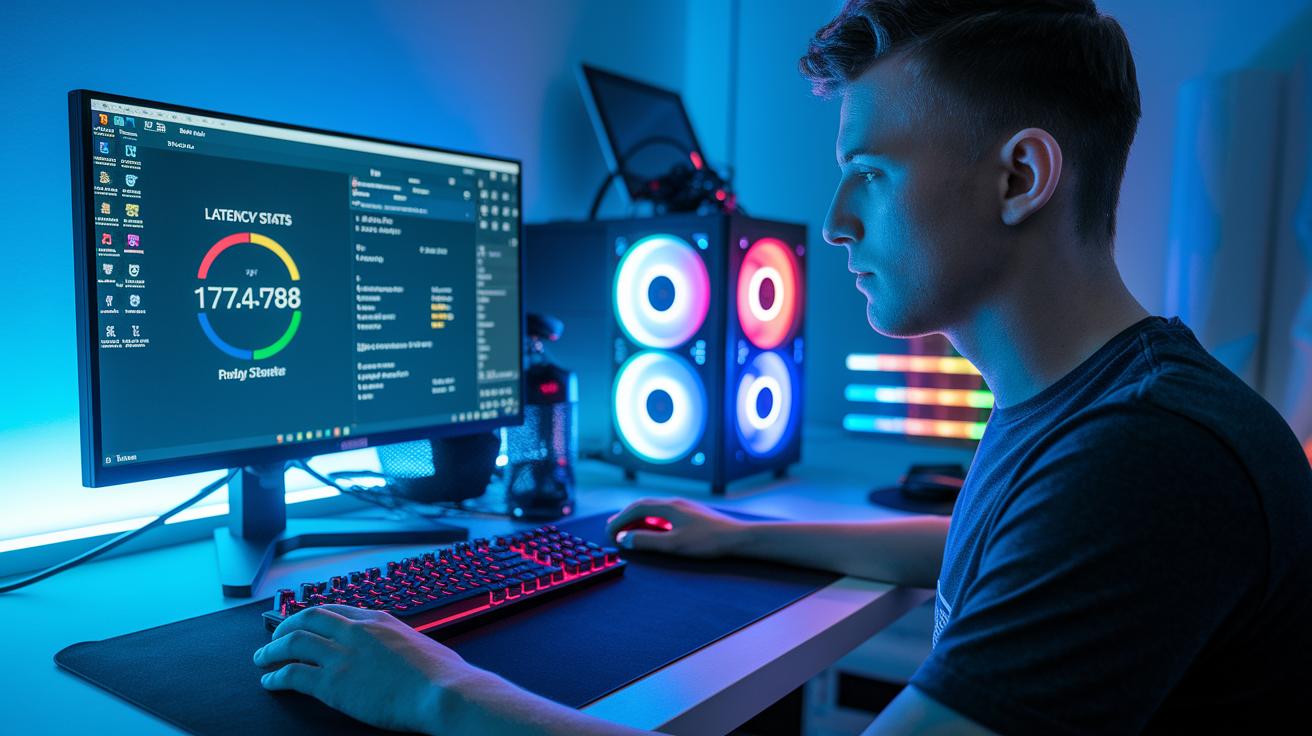
Lowering your ping below 100 ms can be a game-changer. With a quick, smooth connection, every split-second decision counts. Even a few extra milliseconds might slow you down in the heat of battle.
When your downstream speed is around 15-20 Mbps and your network delay is kept low, you’ll notice a real upgrade in your gameplay. A ping in the 20-40 ms range means your commands get through fast and your game feels smooth.
- Run a ping test to 8.8.8.8 to check your current latency. You might be surprised to see if your ping is in that perfect 20-40 ms range.
- Switch to a wired Ethernet connection. This helps cut out interference from Wi-Fi.
- Close apps like Netflix and YouTube that can eat up your bandwidth.
- Move your router to a spot with fewer obstacles. It might be hiding behind furniture or walls.
- Turn on the QoS setting in your router. This makes your gaming traffic a top priority.
- Select a local server when possible. Shorter travel for your data often means lower ping.
- Think about upgrading your broadband or router. A little boost in hardware can make a big difference.
Each step here is all about making your connection tighter and your game smoother. By checking your connection, clearing out extra network load, and fine-tuning your settings for gaming, you attack both the symptoms and the roots of high latency. Mixing quick fixes with smart upgrades helps keep your network responsive and ready when it matters most.
Diagnosing and Testing Gaming Network Latency
Start by using handy tools like ping and traceroute. Try pinging a server like Google DNS at 8.8.8.8 to check your latency. For the smoothest experience, aim to see readings around 20 to 40 ms, though keeping it under 100 ms is acceptable. Check for jitter, which shows if your connection is unstable, and packet loss, meaning some data isn’t making it through. For example, if you ping 8.8.8.8 and get about 35 ms, that’s a good sign during busy gaming moments. Traceroute, on the other hand, maps out the hops your data takes so you can spot any slow segments.
Next, run tests on different devices. If every device shows high latency, the problem might be with your network. But if it’s just one device, it could be a hardware or driver issue. Use jitter tests to see if your ping remains steady. And if you notice packet loss, it means some data isn’t reaching its destination, which calls for a closer look. Analyzing these results helps you decide whether to fix your router settings or update your drivers for more consistent, low-latency gameplay.
Router Configuration and Hardware Upgrades to Lower Gaming Ping
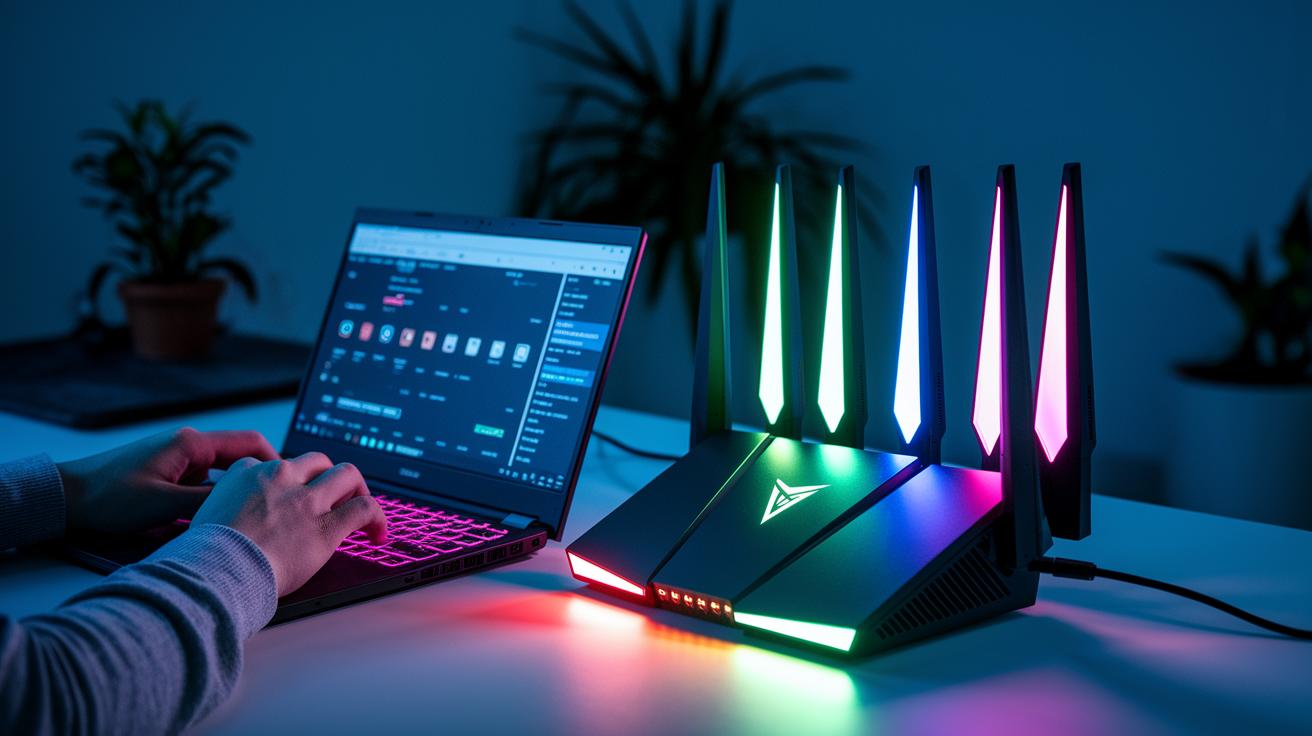
Turn on QoS (Quality of Service) on your router so that your game traffic zooms ahead of background downloads and streaming. This quick tweak cuts down on lag, making sure your game data gets through fast. Also, keeping your router firmware up-to-date is key because updates often fix bugs and boost speed.
Upgrading your router hardware can really improve your connection. When you use a wired Ethernet cable, you can often get ping times under 20 ms. But if you’re on wireless, those extra jitters might mess with your game. Investing in a router built for gamers helps keep your in-game commands feeling quick and responsive.
| Router Model | Key Feature | Price Range |
|---|---|---|
| ASUS RT-AX88U | High-speed WiFi 6 and advanced QoS | High |
| Netgear Nighthawk XR500 | Optimized for gaming with robust firmware | Moderate |
| TP-Link Archer AX6000 | Fast throughput with strong security | Moderate |
| Linksys WRT32X | Tailored for gaming traffic management | Moderate |
Keeping your firmware current makes sure your router runs smooth in intense gaming sessions. If you really want to lower your ping, running a wired Ethernet connection is a smart move. Wireless may give you freedom, but its small delays can matter when you’re in the heat of a match. A mix of top-notch hardware and well-tuned router settings is your best bet for that smooth, competitive gameplay feeling.
WiFi Performance Tuning to Reduce Gaming Network Latency
Your WiFi signal can struggle when things block its path. Walls, floors, and appliances can dampen its strength a bit like a flashlight beam dimming when it hits an obstacle. A quick fix is to shift your router away from heavy barriers and choose a spot that's open and in the middle of your gaming area.
Next, think about which band and channel you're using. The 5 GHz band is usually less crowded than the 2.4 GHz one, though it doesn't spread as far. Picking a clear channel is kind of like choosing a private lane on a busy highway, which means less traffic and a smoother data flow. This simple change can help keep your ping low even when the game gets intense.
Finally, tweak where and how your router is set up. Try raising it up or angling its antennas differently to spread the signal better. If you still have dead spots, adding extenders or powerline adapters can plug those gaps so every part of your gaming setup gets strong, reliable connectivity.
Optimal Server Selection and Routing for Gaming Latency Reduction

When you’re in the middle of a heated match, cutting lag is key to staying on top. Choosing a server nearby means your data doesn’t have to travel so far, which lowers the delay. It’s a smart move to check your in-game server list for live ping numbers; even a tiny drop in ping can be the difference between victory and defeat.
Choosing the Best Game Server
Start by looking at the ping details in your matchmaking menu. If you see a server with around 20 ms ping versus one with 50 ms, go with the lower number, it’s like picking the fastest route to your next win. And don’t forget to use any region filters available, since they help you spot servers that are closer and smoother.
Reducing Network Hops with Route Optimization
Next up, try running a traceroute to an address like Google’s DNS at 8.8.8.8. This simple test shows you how many stops your data makes on its journey to the game server. If you spot too many hops, tweak your DNS settings or jump on a nearby VPN. These small changes can cut out the extra stops and help keep your gameplay quick and responsive.
When you put all these tips together, you’ll enjoy lower ping and a smoother gaming experience, even during those intense, nail-biting matches.
VPN and Bandwidth Management Strategies to Improve Gaming Latency

Benefits and Drawbacks of Gaming VPNs
Gaming VPNs help you avoid ISP slowdowns by rerouting your data in smart ways. They can even give you your own IP so you feel less of the usual online traffic jam. Imagine your ping dropping from 50 ms to around 30 ms, like switching from rush hour to an open road. But keep in mind, the extra encryption can add a few milliseconds here and there. So, while you might beat ISP throttling, you could still experience a tiny delay. It’s a bit like using a power-up that gives you an advantage with a small cost in speed.
Configuring a Gaming VPN for Lower Latency
Setting up a gaming VPN is easier than you might think. First, close any background apps like streaming services or large downloads that hog your bandwidth. This clears the path for your gaming data. Next, add simple QoS rules on your router so your gaming ports get top priority. When you pick a VPN server, choose one that is close to your game host to keep the distance short. Some gamers even set up the VPN directly on their router, so every device in the network benefits. For example, you can set your router to connect to the VPN automatically when you start up your PC. With these tweaks, you can dodge ISP throttling and give your game data the best route possible.
Ongoing Monitoring and Maintenance for Sustained Low Gaming Network Latency

Monitoring your network in real time is more than just spotting obvious issues. To catch tricky problems, take a close look at long-term data logs and use handy tools that show spikes in packet loss and jitter when the match heats up. This extra step can help reveal rare bottlenecks that your usual monthly tests might skip. I remember one intense tournament when our logs showed an unexpected jitter spike, leading us to discover a hidden interference issue.
Dig a bit deeper into your network by checking router logs and trying out different packet sizes. This approach helps you pick up on small changes in latency even if routine tests miss them. Keep a record of these findings, it’s like building your own playbook. This proactive method gives you a better view of your connection over time and can even uncover cool tips for reducing latency.
- Test ping using various packet sizes to spot subtle latency spikes.
- Update your firmware based on long-term logs to fix hidden issues.
- Check your QoS settings and router logs for clearer traffic insights.
- Use spectrum analysis tools to scan your WiFi channels and cut down interference.
Final Words
in the action, this guide breaks down everything from testing latency with simple tools to reconfiguring your router and fine-tuning WiFi settings. We walked through methods like using a wired connection, adjusting QoS, picking local servers, and even setting up a gaming VPN. Regular checks and smart hardware choices can help squeeze every millisecond from your connection. Take these steps seriously, so you can improve gaming network latency and enjoy solid, smooth play.
FAQ
Frequently Asked Questions
How can I improve gaming network latency on Windows 10 as suggested by reddit?
Improving gaming network latency on Windows 10 means using a wired connection, adjusting router settings, and shutting down background apps, just as reddit users have recommended for smoother gameplay.
How do I reduce latency for gaming, including lowering system delays?
Reducing gaming latency involves switching to a wired network, updating drivers, and minimizing background traffic to decrease delays. These steps help boost your system’s responsiveness in fast-paced matches.
What is a good latency for gaming?
A good gaming latency is typically between 20 and 40 ms. Although anything under 100 ms can work, lower numbers offer a much smoother, more competitive playing experience.
How do I improve and reduce network latency effectively?
Improving network latency calls for tuning your router settings, enabling quality of service (QoS), and selecting local servers. These adjustments help your data packets travel faster and maintain a stable connection.
How can I improve latency on Xbox?
Improving Xbox latency means using a wired Ethernet connection, enabling QoS to prioritize gaming data, and choosing local servers in game settings. This reduces lag and enhances overall responsiveness.
What is considered bad latency for gaming?
Bad latency is usually any value over 150 ms, where delays become noticeable. Even speeds above 100 ms can result in choppy gameplay and a less competitive online experience.
Is 100ms latency bad for gaming?
While 100ms latency is playable, it often leads to slight delays during fast-paced action. Most gamers strive for lower latency to keep their reactions sharp during competitive play.
How do I increase my game latency?
Increasing game latency is generally not desired. Most gamers work to lower latency since higher numbers introduce delays that slow your reaction times and overall game performance.