Ever thought that even a split-second delay could cost you a win? Input lag, basically the pause between your key press and the on-screen action, can mess with your reaction time. It sneaks into your setup like a little hurdle right on your way to victory.
In this guide, we'll walk you through easy steps to spot these hidden delays and fine-tune your gear for smooth gameplay. Next, you'll see how clearing out these delays can give you just the edge you need in those high-pressure moments.
Input Lag Test Fundamentals: Understanding Delay Measurements
Input lag is simply the time, measured in milliseconds, between when you press a key or click your mouse and when you see something happen on your screen. Even though your keyboard or mouse might only add a tiny 1 to 3 millisecond delay, all the other parts, like your CPU, GPU, and monitor, can add up to a total lag of 15 to 70 milliseconds. And believe it or not, just a few extra milliseconds can really change a game’s feel.
To check input lag, gamers and techies use a bunch of cool techniques. Some popular ones are:
- High-speed camera measurement
- Online latency diagnostic tool usage
- Software benchmark analysis
- Monitor reaction speed evaluation
- Controller responsiveness checking
Testers often dive into details, like measuring keyboard response times and mouse click speeds, to catch every bit of delay. These methods help spot any hardware or software hiccups so you can tweak your setup for smoother gameplay. By breaking down each part of the lag, you can pinpoint issues without mixing up input lag with network lag, giving you that little extra edge when it counts.
Input Lag Test Methods: Step-by-Step Testing Procedures
When testing input lag, the first thing to do is turn off display options like V-Sync. This stops extra delays from messing with your results. Without V-Sync, you prevent delays that could make your numbers look worse than they really are. Pair this with checking the HDMI signal and vertical sync delays, and you're set for a real look at your system's responsiveness.
Next up, make sure all your cables and devices are working just right. Check that every connection, whether wired or wireless, is secure and in good shape. Running an online latency test right after can help you see if anything else is causing hold-ups. This step is key to spotting hidden issues that might sneak in extra lag.
| Test Method | Description |
|---|---|
| Disable V-Sync | Stops extra sync delays |
| Check Peripheral Connections | Ensure cables and connections work |
| Run Online Diagnostic Tool | Use web tools to check latency |
| Record Frame Timings | Log delay data in milliseconds |
| Compare and Analyze | Match results to set benchmarks |
Finally, log the timing info using special software that records delays for each frame. With tools that check adaptive sync performance and display signal latency, you can compare different devices like keyboards or controllers and even different cables. When your CPU and GPU work well together, it cuts overall lag and gives you a smooth game experience. This careful setup lets you make smart tweaks and really nail your performance settings.
Input Lag Test Tools and Software: Device-Specific Guidelines
When you're checking your gear for delays, start with apps like Nvidia Reflex or AMD Anti-Lag. These programs help you see how fast your devices react and measure your monitor's delay. They break down the lag from a keyboard press versus a wireless controller's signal, so you know which one needs a tweak. Ever notice your mouse clicking nearly instantly while your controller feels slow? That's the kind of insight you get.
Different devices need their own test methods. For keyboards and mice, there are special benchmarks that time the interval between a key press and what shows up on your screen. This matters a lot in competitive gaming where every millisecond counts. And if you're testing TVs or mobile devices, web-based tools can help you compare how fast they respond. This way, you can accurately check both your input devices and your display.
By testing each component separately, you can spot where the lag is coming from and fix it. This approach lets gamers assess everything, from PC peripherals to wired controllers, for a clear picture of overall responsiveness. Next, you can adjust your setup for that smooth gaming experience you’re after.
Input Lag Test Troubleshooting and Optimization: Reducing Latency Effectively
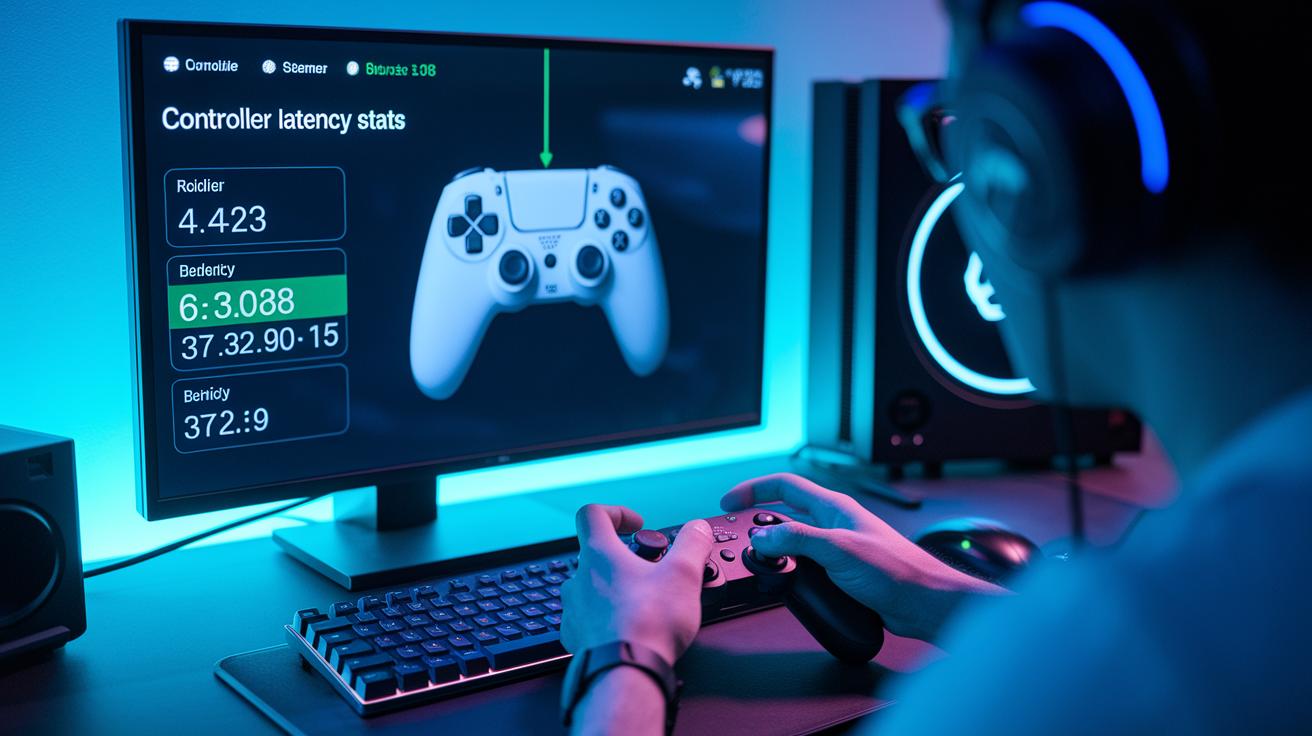
Ever noticed how lag can totally ruin your game? Most times, it comes down to some usual suspects, old drivers, having V-Sync turned on, or FPS settings that just don’t match your system. Imagine playing on your PS4 or PS5 and feeling like every button press is a little late, that’s when updating your drivers or tweaking your settings can bring back that smooth, sharp control. Tools like Nvidia Reflex or AMD Anti-Lag can help you see exactly where things are slowing down. And don’t forget to check your Xbox peripherals or digital controls; sometimes the weakest link is right there.
Next, handle the fixes one step at a time. Start with your software and then move on to hardware. For example, an outdated PS5 gamepad firmware might be holding you back. A few small changes really can make all the difference. Here’s a quick checklist to get you going:
- Update or reinstall your drivers
- Turn off V-Sync
- Adjust your FPS settings
- Think about a hardware upgrade
Taking these steps helps every press and click register without delay. If settings like V-Sync are causing the lag, just switching them off might be all you need. And if your peripherals are the problem, a firmware update or swapping a cable can really boost performance. By fine-tuning your system so that everything, from your controller to your GPU, works together, you ensure smooth, responsive gameplay. This simple troubleshooting routine is your game plan for cutting excess lag and getting the precision you need in those fast-paced matches.
Final Words
In the action, we broke down the input lag test process from understanding delay measurements to step-by-step methods and device-specific tools. We explained how each component, whether a keyboard or monitor, can affect your reaction speed. We also covered troubleshooting tips that help cut down lag and boost your gaming performance.
Conducting an input lag test not only sharpens your skills but also lifts your confidence to try fresh techniques in every match. Keep testing and tweaking for that smooth, competitive edge ahead.
FAQ
How do I test my keyboard’s input lag?
Testing your keyboard’s input lag involves using specialized software or online tools that measure the delay from keystroke to response. A delay around 100ms is considered high and may slow gameplay.
How do I test my mouse’s input lag?
Testing your mouse’s input lag often uses diagnostic tools that register the time between a click and its on-screen action. This helps verify if your mouse responds fast enough for smooth gaming.
How do I test a controller’s input lag on different platforms?
Testing controller input lag on devices like PC or PS4 requires running dedicated latency tools that measure delay from button press to display action, ensuring a responsive gaming experience.
How do I check my monitor’s input lag?
Checking monitor input lag can be done using a high-speed camera test or online diagnostic tools that measure the delay between the GPU sending a signal and the display updating.
What are online input lag tests?
Online input lag tests use web-based software to measure the time delay between your input and on-screen response. These tests help gauge overall system performance during gameplay.
How can I measure in-game input lag?
Measuring in-game input lag involves using built-in game diagnostics or third-party applications that track the time delay from your action to its visible effect during gameplay.
Is 15ms input lag good?
A 15ms input lag is generally acceptable for gamers, offering a quick response that keeps gameplay smooth without noticeable delays in most gaming scenarios.
What is the input lag for a 144Hz monitor?
A 144Hz monitor typically has input lag as low as 1-3ms. This low delay makes it ideal for competitive gaming, offering faster refresh rates and more responsive play.
Is a 20ms input lag noticeable and how much lag is visible?
A 20ms input lag can be noticed in fast-paced games, though many players find it tolerable. Competitive gamers often prefer even lower latencies for the most precise and responsive control.