Ever wonder why there’s a brief pause after pressing a key? That tiny delay can mean the difference between executing a slick combo and missing out on a win.
It’s all about traditional input lag, which makes typing feel slow and can even mess up everyday tasks. Outdated drivers, mixed-up settings, or weak signals might be to blame for slowing down your keyboard.
In this post, we'll break down these common causes and share simple tips to boost your response time. Let’s get you back to that lightning-fast, game-ready pace!
Understanding Keyboard Input Lag: Causes and Quick Fixes
Ever noticed a tiny pause between pressing a key and seeing the action on your screen? That’s what we call keyboard input lag, and it can slow down your game or even everyday tasks. The pause might make your typing feel sluggish or even cost you a game-winning move by just a few milliseconds.
This lag can show up as stuttering, missed keystrokes, or just plain delayed reaction times during both intense gaming moments and normal computer work. It’s like when your favorite game hesitates right when you need a quick move.
There are a few common reasons for this trouble:
Don’t fret, simple fixes can get things back to normal fast. First, check that your keyboard drivers are up to date; if not, reinstall them. Next, if the Filter Keys setting in Windows is active, try turning it off to speed up your response time. Then, give your USB polling rate a once-over, especially if you’re using a gaming keyboard, to help your keystrokes register faster. If you’re using a wireless keyboard, see if nearby devices might be interfering or try a different connection point. Finally, shutting down extra background programs can free up your system’s power and make everything feel snappier.
These tweaks are like adjusting your gear settings before a big match, simple steps to help keep your game (or work) running smoothly.
Tweaking Windows Settings: Driver Updates & Filter Keys Adjustments for Keyboard Input Lag
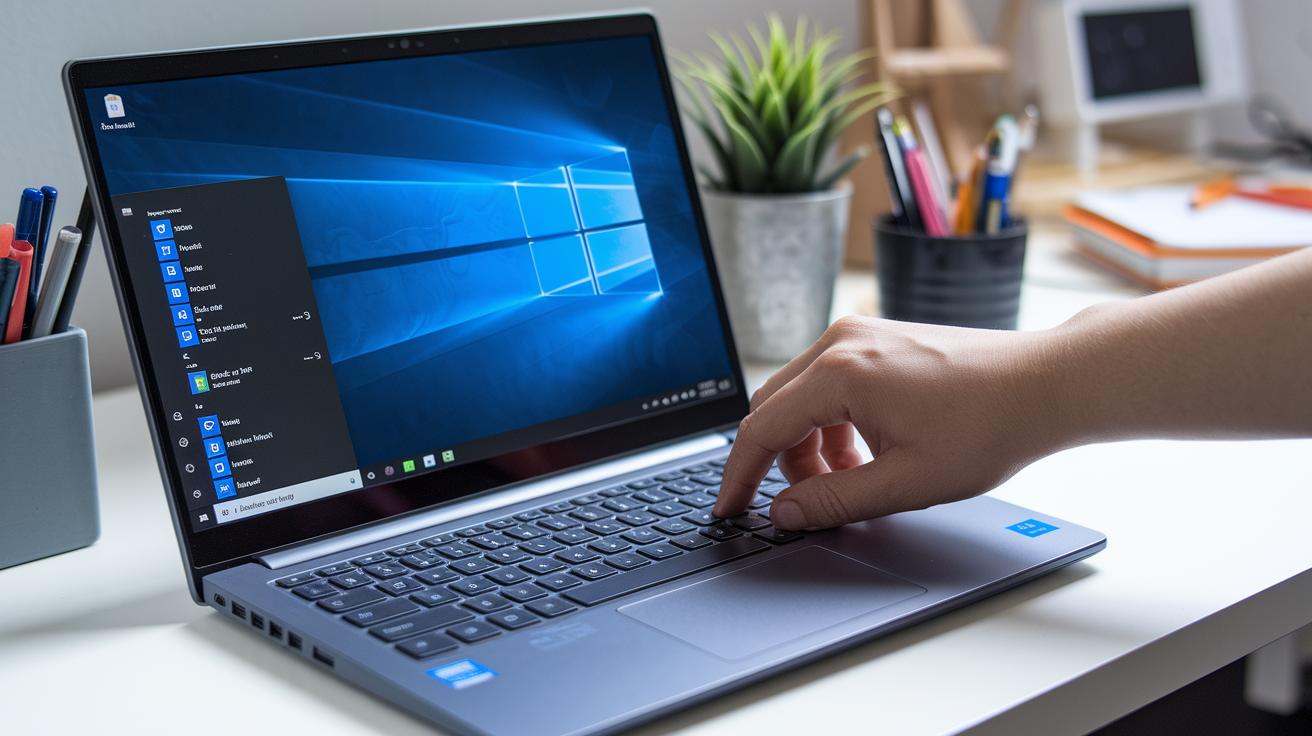
If your keyboard feels sluggish when you type, some Windows settings might be messing things up. Both Windows 10 and Windows 11 can slow down if settings are outdated or off. Sometimes just updating or reinstalling your keyboard driver brings back that snappy feel, like leveling up your gaming rig. And hey, if the Filter Keys option is on, it might ignore quick or repeated presses, adding unwanted lag. Tweaking these settings is as important as fine-tuning your gear before a big match.
Here are some quick fixes to reduce input delay:
- Update or reinstall your drivers
- Turn off Filter Keys
- Run the Hardware Troubleshooter
- Execute the DISM command
Each tip attacks a different issue, whether it’s software glitches or driver hiccups. You can also check your USB polling rate or run the Windows Hardware and Devices Troubleshooter to catch hidden problems. Once you’ve done these, your keyboard might just feel like it’s back in the game, responsive and ready to roll.
Windows Keyboard Troubleshooting Tools
Using Windows’ own diagnostic tools is surprisingly easy. Open your Settings app, type "Troubleshoot," then choose the Keyboard Troubleshooter and let Windows hunt down any issues. Next, give the Hardware and Devices Troubleshooter a try for a deeper search into your set-up. And if problems still stick around, running the DISM command from the Command Prompt can fix any corrupted system files. Think of all these tools as your personal support squad, each one working to get your keyboard back to its best.
Wireless Keyboard Input Lag: Tips for Improving Signal and Battery Performance
Ever been in the middle of an intense gaming session and felt like your keyboard just isn’t keeping up? You might be dealing with lag. Sometimes a slow typing response happens because the batteries are low, or other wireless devices are causing interference.
When your keyboard isn’t synced well with its receiver, you might notice a delay in the Bluetooth connection. It’s similar to sending messages over a spotty network, delays mess up the flow, especially when every keystroke counts.
Here are a few easy steps you can try:
- Replace Batteries – New batteries can give your keyboard a fresh burst of energy.
- Re-sync Connection – Simply disconnecting and reconnecting can clear up any glitches.
- Minimize Wireless Interference – Keep other gadgets away to let your keyboard’s signal shine through.
Try these tips and see the difference with each key press, whether you’re gaming on a phone or using your trusty wireless keyboard at work.
Measuring and Diagnosing Keyboard Input Lag: Tools and Techniques
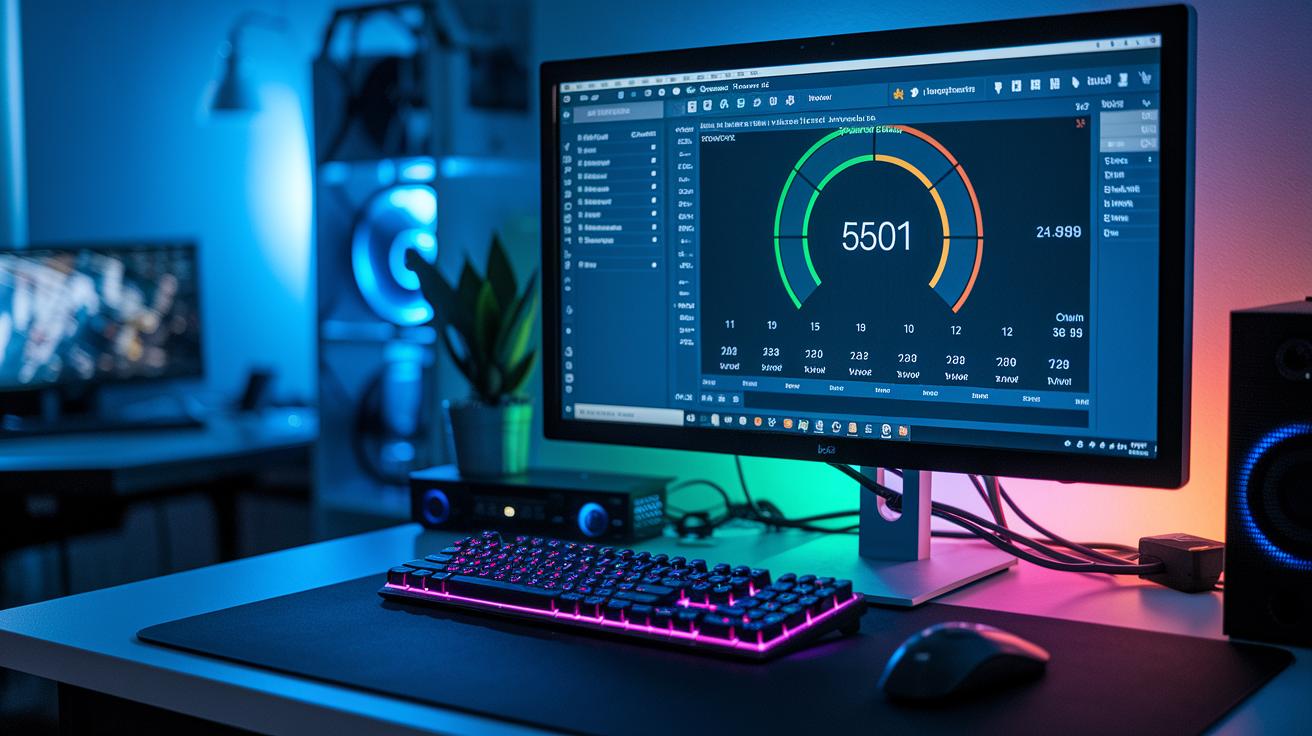
Measuring how fast your keyboard reacts is simpler than it sounds. With a few handy tools, you can find out exactly how long it takes from pressing a key to seeing the action on your screen. Think of a delay test like checking your gear before a big game, it helps you see where any lag might be coming from.
A delay test works by recording time points or tracking events to spot the slowdown. Whether you're deep in a game or typing up a storm, this method makes sure everything is in sync. It's like running a quick performance check to ensure your hardware and software are ready for action.
A few specialized tools can give you a clear picture of these delays and help pinpoint any issues. Below is a quick look at three popular latency testing tools favored by gamers and tech fans:
Optimizing Hardware and Software for Long-Term Keyboard Input Lag Reduction
Merging quick fixes with regular upkeep keeps your keyboard feeling sharp and responsive. We’re not rehashing Windows tweaks or troubleshooting tips here, instead, think of this as your go-to strategy guide for steady, long-term performance.
When it comes to knocking down lag over the long run, you want to update your drivers, check your USB polling rate (that's how quickly your keyboard talks to your system), and run diagnostic tools all in one smooth routine. It’s like fine-tuning your game controller before a major match so every move feels spot-on.
Here’s a quick rundown:
| Tip | What to Do |
|---|---|
| Driver Updates | Refresh your drivers to keep everything running at maximum speed |
| USB Polling Rate | Adjust the rate so your keyboard answers without delay |
| Diagnostic Tools | Regularly check for issues that might slow you down |
| System Settings | Keep an eye on your settings and give them a tweak when needed |
Follow these steps, and you’ll have a clear path to reducing keyboard lag without rehashing old advice. Enjoy the smoother gameplay and the extra edge it brings!
Final Words
In the action, we broke down the problem of keyboard input lag, exploring its causes, from hardware quirks to driver issues. We covered quick fixes for wired and wireless setups and guided you through measuring latency with solid tools. Plus, we shared long-term tips for optimizing both software and hardware settings. This guide gives you a clear path to smoother gaming and streaming, so you can focus on dominating your next match with renewed confidence. Keep pushing your limits and enjoy every keystroke!
FAQ
What does a keyboard input lag test do?
The keyboard input lag test measures the time between a key press and its appearance on screen, helping you spot issues that may affect gaming performance and everyday typing.
How does keyboard input lag affect gaming?
The keyboard input lag affects gaming by delaying response times when you press keys, making in-game actions less immediate during crucial moments.
How is keyboard input lag discussed on Reddit?
The keyboard input lag is discussed on Reddit as users share real-world experiences and troubleshooting tips to reduce delays and improve responsiveness in gaming setups.
What factors cause keyboard input lag on Windows 10 and Windows 11?
Keyboard input lag on Windows 10 and Windows 11 can be caused by outdated drivers, misconfigured settings like Filter Keys, USB polling rate issues, wireless interference, or background programs.
How do I fix input lag, delay, and repeat issues on my keyboard or laptop?
Fixing input lag, delay, or repeat issues involves updating your drivers, disabling misconfigured features like Filter Keys, adjusting system settings, reducing interference, and ensuring your devices are properly optimized.
Why might my keyboard lag on my phone?
Keyboard lag on your phone may occur due to outdated software, heavy background processes, or compatibility issues with the keyboard app; updating the app and operating system can help reduce this delay.