Have you ever been annoyed by a tiny delay that messes up your game? When you press a button and the game takes a split second to react, that gap is called latency. Even a small lag can mean the difference between a win and a loss. In this post, we chat about everyday tweaks like using wired connections, adjusting your router, and picking smart server choices to lower your ping. If lag has been your enemy in the heat of battle, these simple fixes might just turn things around.
Key Configuration for Best Settings to Achieve Low Game Latency
Gaming latency is basically the delay between pressing a button and seeing your character react. Think of it like a quick handshake, ideally, you want it almost instant. A ping under 50 ms is solid, with 20 to 50 ms being the best range. If it goes over 150 ms, things can start feeling pretty laggy.
One quick tip: ditch Wi-Fi for a wired connection. Using an Ethernet cable can cut your latency by 5 to 10 ms, making your gaming much smoother. Also, set up Quality of Service (QoS) on your router so your game packets get VIP treatment over other data. It's like giving your gaming traffic a fast pass at a theme park.
Here’s a simple plan to follow: Connect your PC directly to your router using an Ethernet cable. Then, log into your router settings and turn on QoS, make sure you flag the ports your game uses. Next, close any background apps that might be eating up your bandwidth, like downloads or streaming services. Also, choose game servers that are close by, ideally within 100 miles, to avoid distance delays. And don’t forget to check for firmware updates on your router and other network devices to keep everything running at its best.
Follow these steps, wired connection, QoS setup, closing background apps, selecting nearby game servers, and updating firmware, and you'll enjoy a fast, responsive gaming experience.
Optimal Network Adjustments for Lower Game Latency
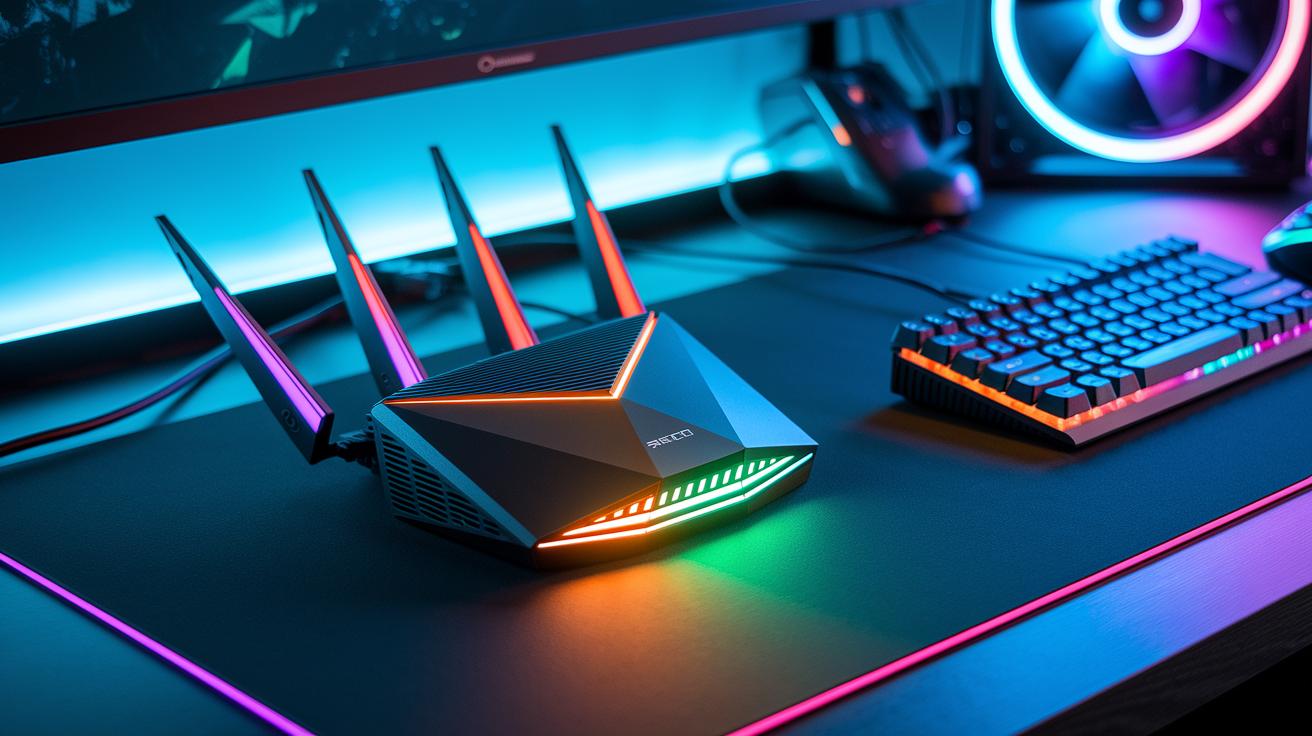
Your internet provider and router settings are key to keeping lag low when you’re gaming. A fast connection and a well-set-up router can really change the game because every split second matters.
Think about upgrading to fiber if you can. Fiber speeds around 1 Gbps or more usually mean ping rates under 20 ms, so you get a smoother experience even when multiple devices are online. Next, dive into your router settings and enable Quality of Service. This lets you prioritize game data by tagging important UDP ports like 3074 for Xbox Live or 27015 for Steam, making sure your game packets jump the queue.
Also, using a gaming VPN that works with WireGuard might cut down on packet loss, which is a real bonus. And if you can, try to keep the number of active devices to five or less to avoid crowding your network.
Between cable and fiber, fiber is the clear winner for gaming, offering faster speeds and a more consistent connection overall.
Hardware Tuning Methods to Minimize Game Latency
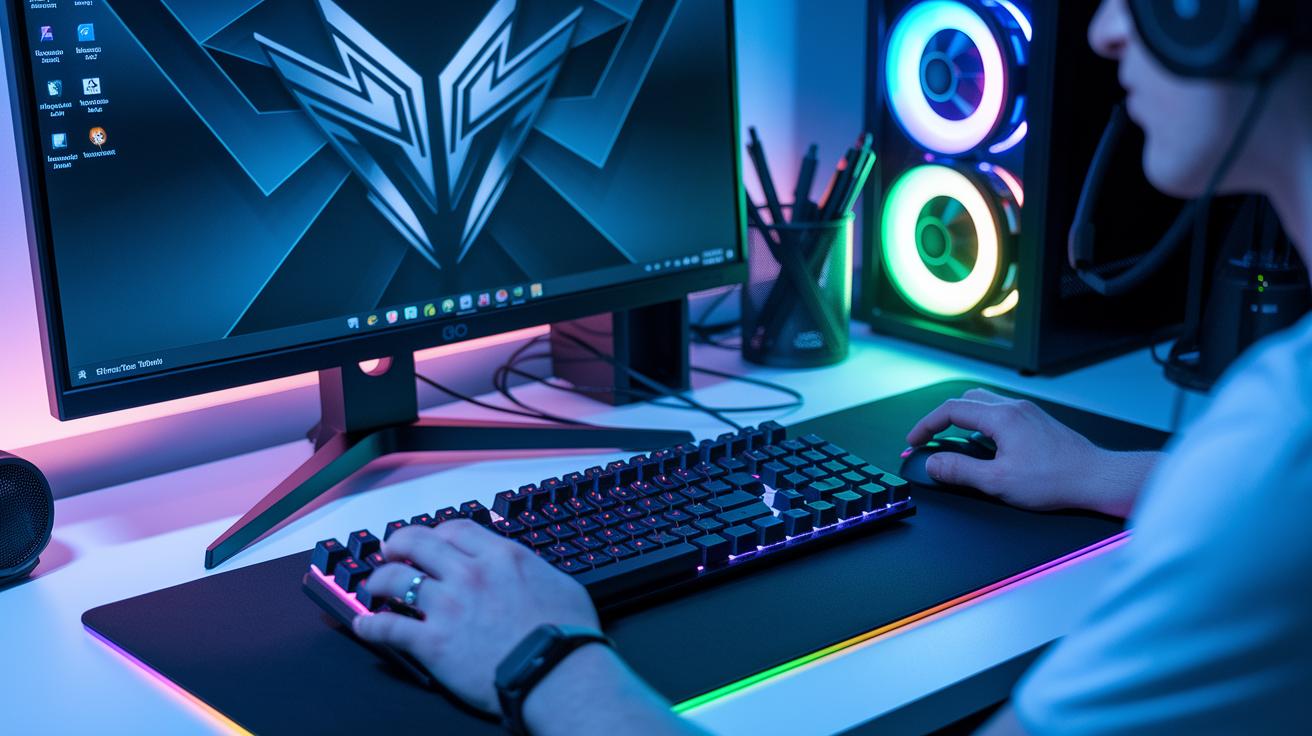
Your gear, from your keyboard to your screen, really affects how fast your game reacts to your moves. Little changes in your hardware settings can trim off crucial milliseconds. For instance, bumping your mouse and keyboard polling rates to 1000 Hz can cut input lag by roughly 3 ms, and turning on features like G-SYNC Esports mode helps your monitor sync up better with your GPU.
| Hardware Component | Tweak | Latency Improvement |
|---|---|---|
| Mouse/Keyboard | Increase polling rate to 1000 Hz | ~3 ms reduction |
| NVIDIA GPU | Enable G-SYNC Esports mode | Less scanout delay |
| CPU/GPU | Overclock by 5–10% | Frame times 2–5 ms faster |
| RTX 20/30 Series | Use GeForce Experience beta one-click tuning | Optimized voltage and frequency curves |
| Display Panel | Upgrade to a G-SYNC 360 Hz monitor | Scanout delay under 2 ms per frame |
Overclocking your CPU and GPU can give you a neat performance boost. But keep an eye on temperatures and power needs. If your system gets too hot or starts acting unstable, you might want to ease off on the overclock. And if every millisecond counts in competitive play, a high-end 360 Hz monitor is totally worth it.
Software Enhancement Techniques for Low Game Latency
Keeping your GPU drivers updated is key to smoother gaming. Updated drivers mean better performance, fewer bugs, and improved support for cool game features. When you update regularly, your system can use the latest tweaks to cut down lag and boost responsiveness.
First, if you have a GTX 900 series or later, turn on NVIDIA Reflex Low Latency Mode. It can slice your render queue by almost a third. Next, pop into the NVIDIA Control Panel and switch on Ultra Low Latency Mode to ease GPU overhead by roughly 10%. Then, set your display to Exclusive Fullscreen mode in Windows; this little change can reduce input lag by 5–8 milliseconds. After that, disable VSYNC in both your driver and game settings so frames don’t get held up. Finally, enable Windows Game Mode to give CPU and GPU resources extra priority during gameplay.
Putting these settings together smooths out frame delivery and cuts down on render lag. The result? A more responsive game that can handle even the most fast-paced action. Ever felt that surge of excitement when every tweak clicks into place? That's the kind of gaming edge these tweaks offer.
In-Game Graphics Settings to Lower Game Latency
Lowering your game’s render workload can make it feel snappier. When your system doesn’t have to pump out every frame at full power, it can handle actions quicker. This means smoother gameplay when you drop your render scale, giving your GPU a break.
Tweaking your in-game settings is like fine-tuning your rig for performance. Start by dialing your render scale down to around 80-90% to bump your FPS by 15-25% and speed up frame processing. Then, turn off extra effects like motion blur and depth of field since they can add a few milliseconds of lag. Next, switch over to Exclusive Fullscreen mode and max out your monitor’s refresh rate to 144 Hz or more. Finally, set a manual FPS cap just a notch above your monitor’s rate, like 145 FPS on a 144 Hz screen, to keep frame pacing smooth.
It’s all about balancing cool visuals with quick reactions. Play around with these settings until you hit that perfect mix where your game looks great and responds instantly.
Latency Troubleshooting Steps and Diagnostic Tools
Measuring latency precisely is like tuning your gaming rig for top performance. When you know how long each data packet takes, you can zero in on where those annoying delays crop up. Tools like ping tests or traceroute are super handy because they flag potential issues, letting you fix them with confidence.
| Tool | Function | Output |
|---|---|---|
| Ping | Sends packets to an IP to check basic connectivity | Shows latency in milliseconds per packet |
| Traceroute | Maps out each hop along your network route | Reports the time delay at each hop |
| WinMTR | Merges ping with traceroute to track jitter over time | Delivers real-time stats on latency and packet loss |
| PingPlotter | Logs latency spikes and trends over hours | Provides detailed average and percentile data |
Knowing both the average latency and the 95th-percentile numbers is important. The average reflects your usual speed, while the 95th-percentile can reveal sudden spikes that might mess with your game. Use these insights to tweak your network settings or check your hardware, so you can keep that response time low and your gameplay smooth.
Final Words
in the action, we’ve seen how each tweak, from switching to wired Ethernet to adjusting graphics settings, shapes a smoother play. We broke down performance tips in network, hardware, software, and in-game tweaks that all cut down on delays.
These insights give you the best settings for low game latency you need to boost your edge. Stay focused, keep experimenting, and enjoy a faster, more competitive play every time.
FAQ
Frequently Asked Questions
What are the best settings for low game latency, as discussed on Reddit?
The best settings for low game latency, as noted on Reddit, involve using a wired connection, router QoS, closing background apps, and selecting nearby servers to reduce ping and boost performance.
How do I reduce latency for gaming and lower my game latency?
Reducing game latency means using a wired Ethernet connection instead of Wi-Fi, managing background downloads, and picking servers nearby, which together cut ping time and ensure smoother gameplay.
Should Nvidia Low Latency mode be set to On, Off, or Ultra?
Nvidia Low Latency mode choices are best adjusted based on your setup; the Ultra version further cuts render queue delays, while the standard mode weakly reduces lag—the optimal choice depends on your system’s performance.
What is considered average PC latency on Nvidia setups and how can it be lowered?
Average PC latency on Nvidia systems usually hovers around 50 ms or lower; improving it involves updating drivers, enabling low latency settings, and using wired Ethernet to trim network delays.
What is the best setting for achieving low latency in games?
The best low-latency setup means combining wired connections, router QoS, background-app closures, game server proximity, and firmware updates to provide a stable, responsive gaming experience.
Is low latency mode good for gaming?
Low latency mode benefits gaming by reducing the delay between input and on-screen action, making gameplay feel snappier and more responsive during high-stakes matches.
Is 72 ms latency acceptable for gaming?
A latency of 72 ms is above ideal values, as gamers usually aim for 20–50 ms for smooth play; while it’s playable, reducing it further can lead to a noticeably better experience.